The Healing Brush is an essential tool in photo editing, designed to seamlessly remove distractions and imperfections from images. By understanding its functionality and application, editors can enhance their photographs significantly. This guide delves into the nuances of the Healing Brush, contrasting it with other retouching tools and tracing its evolution in the realm of image editing.
Equipped with the right techniques and knowledge, users can elevate their editing skills and achieve remarkable results. Whether one is a novice or a seasoned professional, mastering the Healing Brush opens up a world of possibilities in creating visually stunning images.
Introduction to the Healing Brush Tool
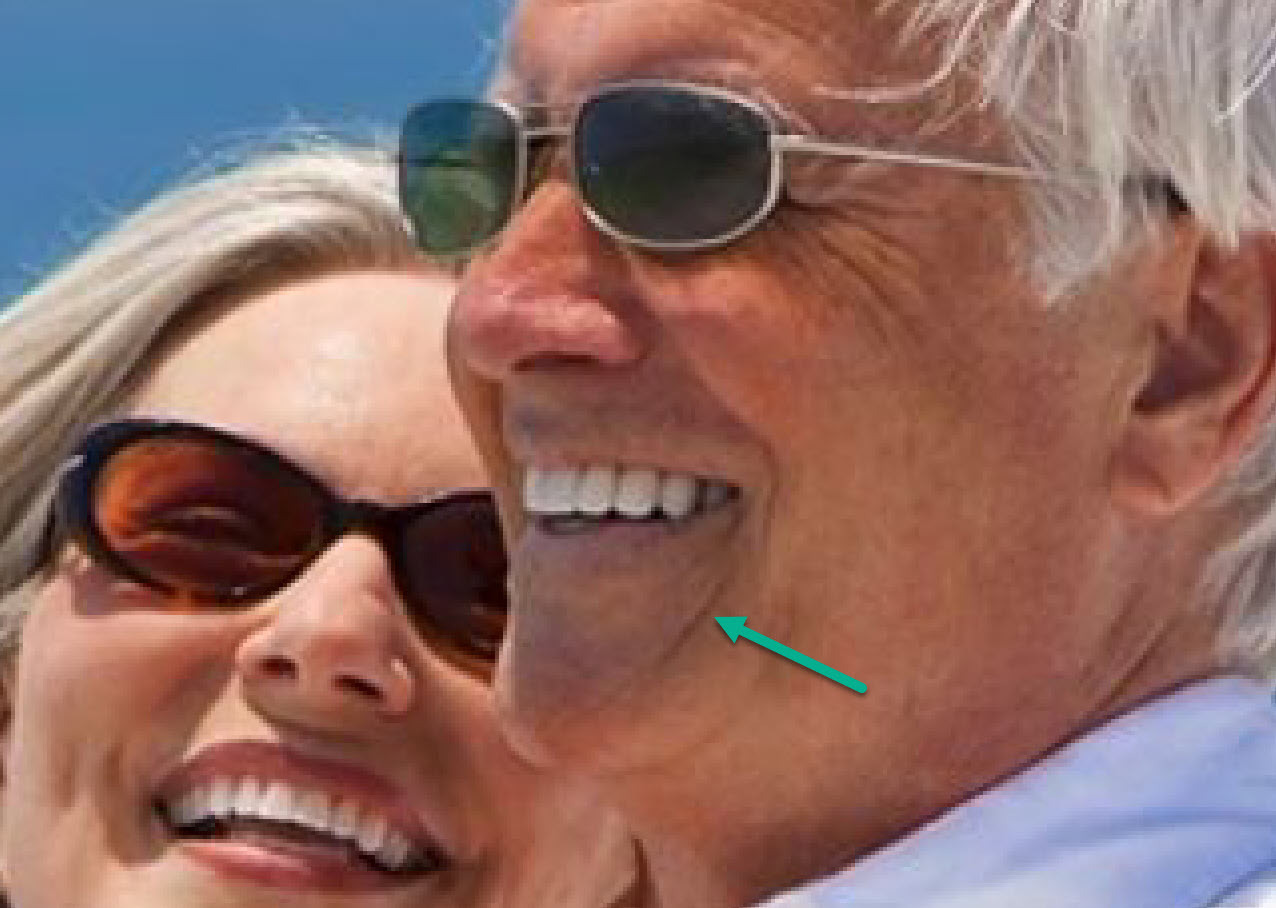
The Healing Brush Tool is an indispensable feature in photo editing software, designed to help users seamlessly remove imperfections and distractions from images. By blending the sampled pixels with the surrounding area, it ensures that edits appear natural and unobtrusive, enhancing the overall quality of the photograph. This tool is widely used by photographers, graphic designers, and digital artists to refine images, ensuring that the final product is polished and professional.The Healing Brush distinguishes itself from other retouching tools, such as the Clone Stamp, through its unique functionality.
While the Clone Stamp merely duplicates pixels from one part of the image to another, the Healing Brush intelligently analyzes the texture, lighting, and shading of the area being edited. This capability allows the Healing Brush to create a more cohesive and blended appearance, particularly useful for correcting skin blemishes, unwanted objects, or any other distracting elements.
History of Image Editing Tools Leading Up to the Healing Brush
The evolution of image editing tools has paved the way for sophisticated features like the Healing Brush. Early photo editing began with basic tools available in darkrooms, where photographers would manually retouch negatives or prints using physical methods. As technology advanced, digital editing emerged, with software like Adobe Photoshop leading the charge in the late 1980s. Initially, tools available in early versions of Photoshop were limited to basic functions such as cropping and color correction.
However, as user demands grew, so did the complexity and variety of tools. The introduction of the Clone Stamp in the early days of digital editing allowed users to copy and paste pixels, but this method often resulted in noticeable edits.The Healing Brush was introduced in Photoshop 7.0 in 2002, marking a significant milestone in photo editing capabilities. This advancement represented a shift towards more intelligent editing tools that could analyze context and surrounding pixels, providing users with greater control and flexibility.
The Healing Brush has since become a standard feature in many photo editing applications, reflecting the ongoing evolution and refinement of digital editing tools designed to enhance visual storytelling.
Preparing Your Image for Editing
Before applying the Healing Brush in your image editing process, it is essential to thoroughly assess the image to identify any distractions that require removal. This crucial step sets the foundation for effective editing and ensures the final output is polished and visually appealing.Assessing an image allows you to pinpoint common distractions such as blemishes, dust spots, or unwanted objects that detract from the subject.
The Healing Brush tool can effectively remove these imperfections by blending the corrected area seamlessly with the surrounding pixels. Preparing your image optimally before using this tool enhances outcomes significantly.
Common Distractions in Images
Identifying distractions is a vital part of the preparation process. Typical distractions that can be efficiently removed using the Healing Brush include:
- Blemishes and Skin Imperfections: Acne, scars, and wrinkles can draw attention away from the subject’s natural beauty.
- Dust and Scratches: These can appear on images due to sensor dust or scans of old photographs, creating unnecessary visual noise.
- Unwanted Objects: Items in the background or foreground that distract from the main subject can be distracting and diminish the overall impact of the image.
- Lighting Irregularities: Shadows or highlights that are too harsh may need correction for a balanced appearance.
To enhance the quality of the image prior to using the Healing Brush, certain methods can be employed. These techniques help improve the image’s overall appearance, making it easier to work on.
Methods to Enhance Image Quality
Improving the quality of an image provides a better context for the Healing Brush application, leading to more satisfying results. Consider the following methods:
- Adjusting Exposure: Correcting the exposure can help reveal details that may be obscured by overly dark or bright areas.
- Sharpening: Increasing the sharpness of the image enhances the edges, making the subject stand out more clearly.
- Color Correction: Adjusting the colors can bring life back to the image, ensuring that distractions are less noticeable.
- Cropping: Removing unnecessary portions of the image can focus attention on the primary subject, reducing clutter and distractions.
By following these preparation steps, the Healing Brush can be utilized more effectively, resulting in a cleaner, more professional-looking image. Proper assessment and enhancement before applying the tool not only streamline the editing process but also facilitate a more enjoyable manipulation experience.
Step-by-Step Guide to Using the Healing Brush
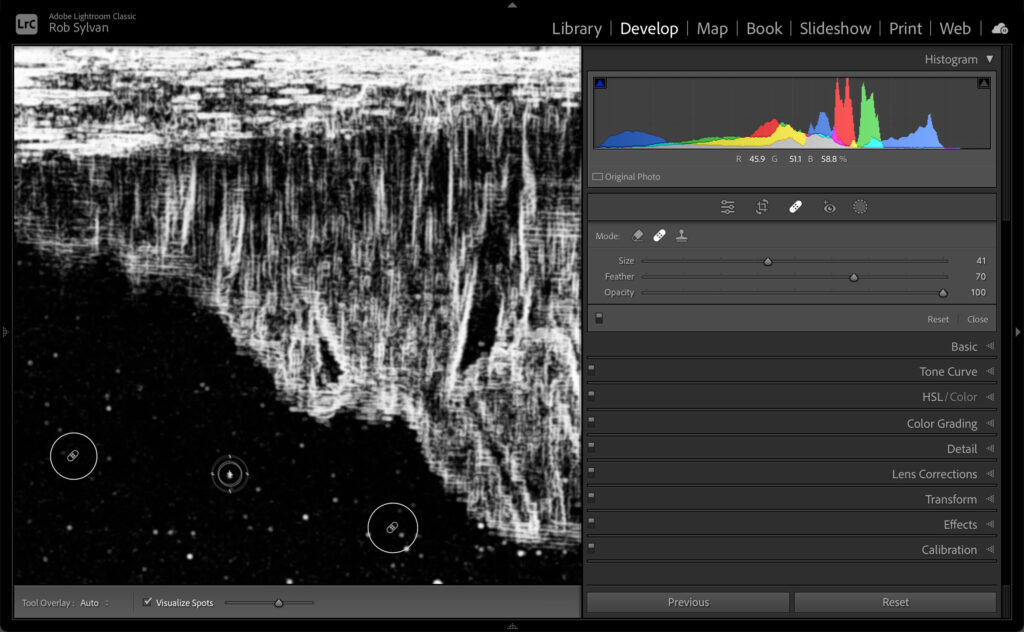
The Healing Brush tool is an essential feature in many photo editing software applications, designed to seamlessly remove distractions and imperfections from images. By utilizing this tool effectively, users can enhance the overall appearance of their photographs without compromising the natural look of the subject matter. In this section, we will provide a detailed step-by-step guide on how to utilize the Healing Brush tool for optimal results.
Selecting the Healing Brush Tool
To begin using the Healing Brush tool, it is crucial first to locate and select it within your editing software. This tool is typically found within the toolbar or the brush options.
- Open your image in the editing software.
- Navigate to the toolbar, often located on the left or top of the interface.
- Look for the icon that resembles a band-aid or a brush, which signifies the Healing Brush tool.
- Click on the Healing Brush icon to select it. If your software has multiple healing tools, ensure you choose the one specifically marked as the Healing Brush.
Adjusting Brush Settings
Once you have selected the Healing Brush, adjusting the brush settings is essential for achieving the best results. The following parameters may be adjusted:
“Optimal brush settings ensure a natural blend with the surrounding pixels.”
- Brush Size: Use the size slider to increase or decrease the brush size based on the area you are working on. For small details, a smaller brush is more effective.
- Brush Hardness: Set the hardness of the brush to control the feathering of the edges. A softer brush edge will create a smoother blend.
- Opacity: Adjust the opacity to control the strength of the healing effect. A lower opacity can create more subtle corrections.
- Flow: Setting the flow determines how much paint is applied with each brush stroke. A lower flow allows for more control and gradual effects.
Sampling Areas for Healing
Sampling the right areas is a critical step in using the Healing Brush effectively. This process ensures that the pixels used for healing closely match the surrounding textures and colors.
“Sampling from appropriate areas enhances the effectiveness of the Healing Brush.”
To sample an area:
- Hold down the Alt key (Option key on Mac) while clicking on the area of your image that you wish to sample. This area should closely resemble the texture and color you want to apply to the target area.
- Release the Alt key and carefully paint over the distraction or imperfection using the Healing Brush.
- Adjust your sampling area as needed, especially if the initial sample does not yield satisfactory results.
Applying the Healing Brush effectively requires patience and practice. By carefully selecting and adjusting the Healing Brush tool while sampling appropriate areas, users can achieve stunning results and enhance their images significantly. This process not only removes distractions but also maintains the integrity of the original photograph.
Best Practices for Effective Healing
To achieve optimal results when using the Healing Brush tool, it is essential to adopt specific best practices that enhance the effectiveness of your edits. These practices not only streamline the editing process but also contribute to a more polished final image.Choosing the right source points for the Healing Brush is crucial to ensure that the edits look natural and seamless.
Selecting source points that closely match the color, texture, and lighting of the area being repaired will yield the best results. In addition, maintaining a balance between the source point and the area needing correction is vital for achieving a cohesive look.
Choosing Source Points Wisely
When utilizing the Healing Brush, the accuracy of the source points plays a significant role in the effectiveness of the tool. Here are some tips to ensure you select the best source points:
- Match Colors: Select source points that closely resemble the color of the area you want to heal. This helps in blending the edited area with the surrounding pixels.
- Texture Consistency: Choose source points that have a similar texture to the area being edited. This avoids stark contrasts that can make the edit noticeable.
- Lighting Conditions: Consider the lighting in both the source and target areas. It’s important that the source point reflects the same level of brightness and shadow as the area needing repair.
- Proximity: Generally, source points should be located as close as possible to the target area to ensure a natural transition.
Importance of Zooming In
Zooming in while using the Healing Brush tool is essential for precision and accuracy. When working on intricate details, a close-up view allows for more controlled edits and reduces the risk of unintended alterations to surrounding areas.
The closer you are to the details, the more precise your edits will be.
Working at a higher zoom level enables you to see pixel-level differences, which is particularly valuable when correcting small distractions or blemishes. This precision is crucial when working around delicate features such as eyes or hair, where minor adjustments can significantly impact the overall aesthetic of the image.
Common Mistakes to Avoid
Like any tool, the Healing Brush is susceptible to common errors that can lead to less than satisfactory results. Understanding these pitfalls can help you avoid them:
- Using Inconsistent Source Points: Avoid selecting source points that vary significantly in color or texture as this can create a patched look.
- Overusing the Tool: Applying the Healing Brush too liberally can lead to a loss of detail and a flat appearance. Use it sparingly, focusing on specific areas.
- Neglecting to Zoom: Failing to zoom in can result in imprecise edits and unintentional changes to the surrounding areas.
- Ignoring the Undo Function: Overlooking the ability to undo actions can lead to frustration. Regularly assess your edits, and do not hesitate to revert if the results are not as expected.
Incorporating these best practices will greatly enhance the effectiveness of the Healing Brush tool, allowing for refined and professional-looking edits while minimizing the risk of common mistakes.
Advanced Techniques with the Healing Brush
The Healing Brush tool is a powerful asset in photo editing, particularly when addressing distractions in images. Advanced techniques can elevate your editing skills, enabling you to achieve seamless results. Combining the Healing Brush with other tools can significantly enhance its effectiveness, ensuring a polished finish to your images.
Combining the Healing Brush with Additional Tools
Utilizing the Healing Brush in conjunction with other editing tools allows for a more refined approach to correcting imperfections. Here are key combinations that can yield superior results:
- Clone Stamp Tool: Use the Clone Stamp tool to define a specific area of texture, then switch to the Healing Brush to blend the texture with skin tones or background colors. This combination is particularly useful for correcting larger distractions such as blemishes or unwanted objects that require texture matching.
- Patch Tool: The Patch Tool can be used to select and drag an area of an image that needs repair. After making a selection, the Healing Brush can be applied to fine-tune edges and create a more natural transition.
- Adjustment Layers: Before applying the Healing Brush, consider using adjustment layers to enhance the overall image quality. For instance, adjusting the contrast or brightness can make distracting elements stand out less, making them easier to heal.
- Blur Tool: After using the Healing Brush, applying the Blur Tool lightly over the edited areas can soften any harsh lines or textures, providing a more cohesive look to the retouched sections.
Using the Healing Brush in Different Scenarios
The Healing Brush can be utilized in a variety of contexts, notably in skin retouching and background cleanup. Each scenario requires specific techniques to ensure effective results.
- Skin Retouching: For portraits, the Healing Brush is invaluable in removing blemishes while preserving skin texture. It is essential to sample from nearby, unblemished skin. Work at a low opacity for subtle adjustments to maintain a natural look.
- Background Cleanup: When dealing with distracting elements in backgrounds, such as power lines or unwanted objects, zoom in for precision. Sample a clean area of the background, ensuring to match colors and patterns for a seamless appearance when applying the Healing Brush.
- Complex Distractions: In cases where there are intricate distractions, such as stray hairs or clutter, utilize the Healing Brush to paint over these areas gradually. Adjust the brush size often to accommodate varying details and maintain the integrity of the surrounding elements.
Examples of Complex Distractions
When faced with challenging distractions, such as a busy background or intricate objects, a strategic approach is vital. Consider the following examples:
- Stray Hairs in Portraits: Use a small brush size to carefully paint over stray hairs, sampling nearby skin to blend effectively. This method preserves the natural look of the hair and skin.
- Cluttered Backgrounds: If an image has unwanted items in the background, such as trash cans or other distractions, use the Healing Brush to cover these items by sampling from nearby areas. Adjust the brush size and hardness to ensure a smooth transition between the edited and unedited areas.
- Unwanted Shadows: Shadows can detract from the subject. Employ the Healing Brush alongside the Clone Stamp Tool to remove or soften shadows while blending them into the larger canvas. This creates a more inviting and engaging image.
Troubleshooting Common Issues
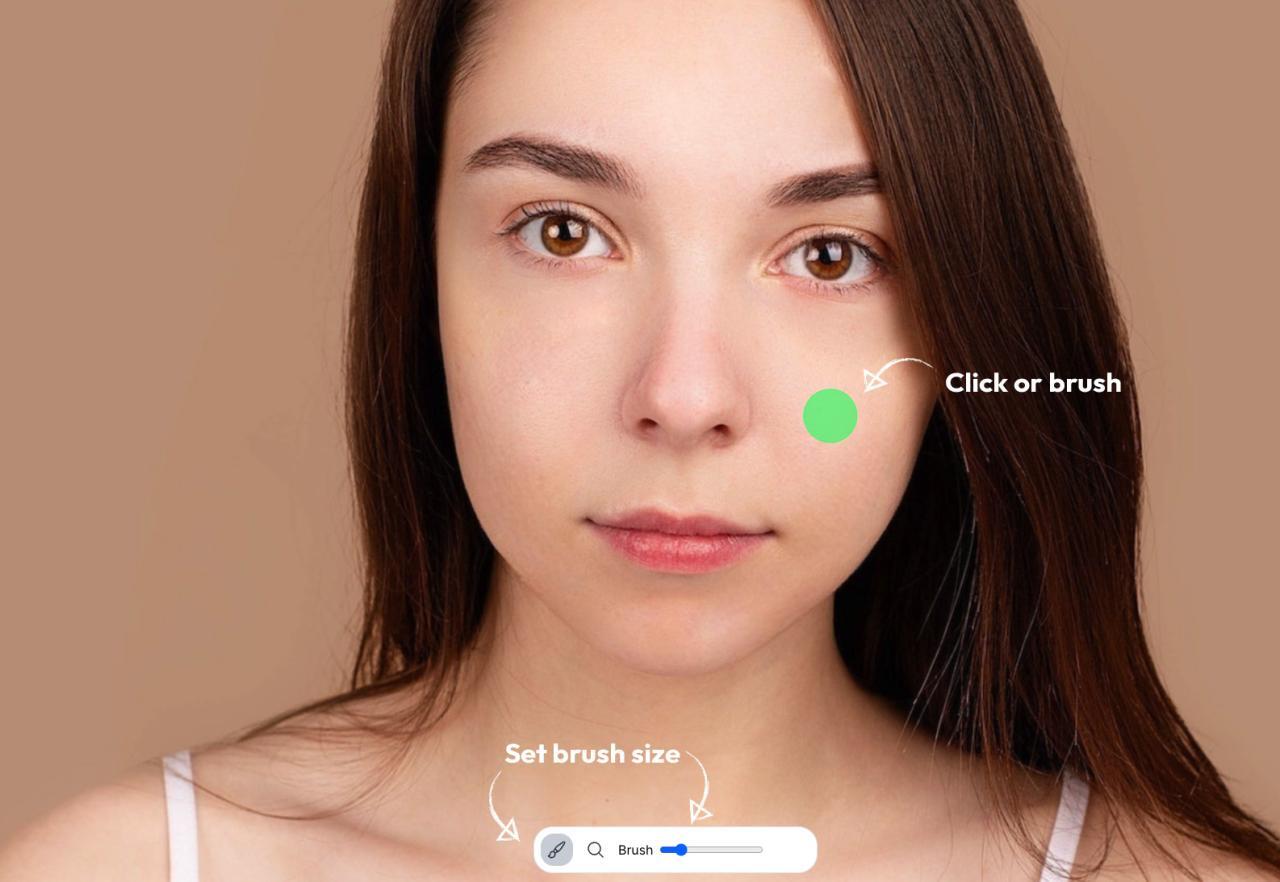
When using the Healing Brush tool, users may encounter various issues that can hinder their editing process. Understanding these common problems and their solutions will enable smoother and more effective use of the tool. This section addresses prevalent challenges and provides guidance on achieving optimal results.
Inconsistent Results and Patchiness
Inconsistent results and patchiness are frequent complaints among users of the Healing Brush tool. This often occurs when the source area selected for healing does not match the surrounding textures or colors effectively. To mitigate this, consider the following solutions:
- Ensure Proper Source Selection: Carefully choose a source point that closely resembles the area you are trying to repair. This helps maintain consistency in texture and color.
- Adjust Brush Size and Hardness: Using a brush size that is too large may result in blending disparities. Adjust the size to match the scale of the area being edited, and alter the hardness to create a more seamless effect.
- Zoom In for Detail: Working at a higher zoom level allows for more precise placement of the healing brush, yielding better results.
- Use Multiple Passes: For larger areas, consider applying the healing brush in multiple smaller sections rather than attempting to fix everything in one go. This can prevent overwhelming the tool and aid in achieving more uniform results.
Refining the Healing Effects
After the initial application of the Healing Brush, further refinement may be necessary to enhance the overall appearance of the edited area. Here are techniques to achieve refined effects:
- Layering Techniques: Consider applying the healing brush on a new layer. This allows you to adjust the opacity and blending mode, facilitating better integration with the original image.
- Utilize the Clone Stamp Tool: Combining the Healing Brush with the Clone Stamp Tool can provide more control over the details. Use the Clone Stamp to address any stubborn areas that the Healing Brush did not handle effectively.
- Adjust Layer Opacity: If the healing effect appears too strong, reducing the layer opacity can create a more natural look while keeping the adjustments intact.
- Blur Tool for Seamless Blending: Employ the blur tool lightly around the edges of the healed area to create a smoother transition between the fixed and original parts of the image.
Using the Healing Brush effectively requires practice and patience, especially when troubleshooting common issues. With careful attention to detail and appropriate techniques, users can enhance their editing results significantly.
Real-World Applications of the Healing Brush
The Healing Brush tool has significant relevance across various professional fields, serving as an essential component in image editing and restoration. This versatile tool is utilized not only in photography but also in graphic design, digital art, and even in industries such as fashion and healthcare. By effectively removing distractions, the Healing Brush enhances the overall quality and impact of images, making it indispensable in modern workflows.In professional settings, the Healing Brush can streamline processes, improve the quality of outputs, and save time during editing.
The ability to seamlessly blend repairs into the surrounding area allows artists and technicians to maintain the integrity of their work while addressing imperfections. Below are some of the key industries that commonly employ the Healing Brush in their workflows.
Applications Across Different Industries
Each industry uses the Healing Brush to meet specific needs, demonstrating its flexibility and effectiveness. The following examples Artikel how various sectors implement this tool:
- Photography: Professional photographers frequently use the Healing Brush for retouching portraits, eliminating blemishes, distractions, or unwanted objects from images. For instance, a wedding photographer may use it to remove background elements that draw attention away from the couple.
- Fashion: In fashion photography, the Healing Brush aids in correcting minor flaws in clothing or skin, allowing for a polished final product. Editors can enhance textile details or remove distracting shadows that could detract from the garment’s design.
- Advertising: Marketing and advertising campaigns often rely on high-quality imagery. The Healing Brush allows graphic designers to refine product images or models, ensuring that they are visually appealing and aligned with brand standards.
- Healthcare: Medical imaging can benefit from the Healing Brush when preparing visuals for educational or presentation purposes. Removing artifacts or distractions from images can help clarify important details for analysis or demonstrations.
- Digital Art: Artists working on digital illustrations and paintings utilize the Healing Brush to smooth out textures or correct minor errors, thus enhancing their creative works without compromising their artistic vision.
A practical illustration of the Healing Brush’s capabilities can be observed in the following case study, which highlights its effectiveness in removing distractions from an image.
Case Study: Before-and-After Application of the Healing Brush
In a comparative analysis, a portrait image initially captured with a distracting background element—such as an electrical pole—was edited using the Healing Brush. The ‘Before’ image displayed the subject standing in a park, but the pole detracted from the overall composition, drawing the viewer’s attention away from the person. Following the application of the Healing Brush, the ‘After’ image showcased a refined version where the pole had been seamlessly removed.
The tool blended the surrounding colors and textures, resulting in a natural look that emphasized the subject without any visible signs of alteration.This transformation not only demonstrates the Healing Brush’s capacity to address distractions effectively but also underscores its importance in ensuring that the focus remains on the subject, ultimately enhancing the viewer’s experience.
Conclusion and Further Learning Resources
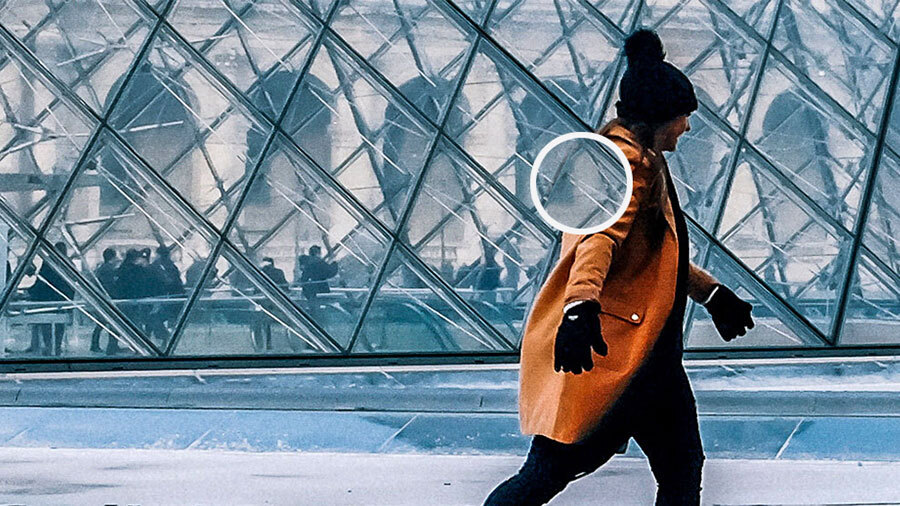
As you advance your skills with the Healing Brush tool, it is vital to explore additional resources that can enhance your understanding of photo editing techniques. The journey of mastering image editing is continuous, and there are numerous platforms available to help you refine your craft.The following resources are highly recommended for those looking to deepen their knowledge of the Healing Brush and other advanced editing techniques.
Engaging with these materials will not only enhance your technical skills but also inspire your creativity.
Recommended Courses and Tutorials
A variety of courses and tutorials dedicated to advanced photo editing techniques can be found online. These resources provide structured learning paths and practical exercises.
- Adobe’s Official Tutorials: These comprehensive guides offer insights directly from the creators of the software, covering various tools including the Healing Brush.
- Udemy Courses: Platforms like Udemy feature a wide range of courses on photo editing, with several focusing specifically on Adobe Photoshop and advanced healing techniques.
- LinkedIn Learning: This platform provides professional courses on photo editing that include modules on using the Healing Brush effectively.
- YouTube Channels: Channels such as Phlearn and PiXimperfect provide valuable video tutorials, showcasing step-by-step techniques for mastering the Healing Brush.
Community Forums and Networking Groups
Connecting with other image editors can significantly enhance your learning experience. Engaging in community forums and groups allows for networking, sharing experiences, and obtaining feedback on your work.
- Adobe Community: A forum dedicated to Adobe product users where you can ask questions and share tips about the Healing Brush and other tools.
- Reddit: Subreddits like r/photography and r/photoediting offer spaces to discuss techniques, share your work, and seek advice from fellow enthusiasts.
- Facebook Groups: Groups such as ‘Photoshop Tutorials’ and ‘Photo Editing’ are great for sharing your projects and learning from others in the field.
- Meetup Groups: Look for local meetups focused on photography and editing, allowing you to meet other professionals and enthusiasts in person.
Obtaining knowledge from these resources will undoubtedly empower you to achieve exceptional results with the Healing Brush and broaden your overall photo editing capabilities. By continuously learning and sharing within the community, you will remain at the forefront of image editing trends and techniques.
Ultimate Conclusion
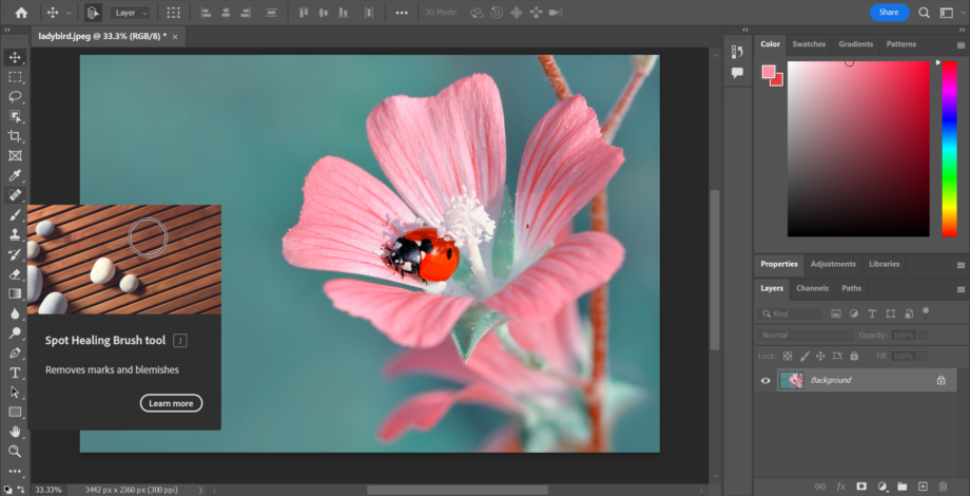
In conclusion, the Healing Brush proves to be a vital tool for anyone looking to refine their images by eliminating unwanted distractions. By following the Artikeld steps and best practices, users can harness its full potential for various editing scenarios. As we continue to explore advanced techniques and resources, the journey toward becoming a proficient image editor is both rewarding and inspiring.