How to Sharpen Your Images the Right Way is an essential guide for photographers and image editors aiming to enhance their visual creations. Understanding the intricacies of image sharpness is crucial not only for capturing stunning photographs but also for effectively presenting them in various formats. This overview will delve into the fundamental concepts of image sharpness, common techniques for achieving optimal results, and the most effective tools available to enhance your images.
Through this exploration, we will discuss the difference between perceived and actual sharpness, highlight various sharpening techniques, and offer best practices tailored to specific scenarios. Whether you are working on a breathtaking landscape or a detailed portrait, mastering the art of image sharpening can significantly elevate the quality of your work.
Understanding Image Sharpness
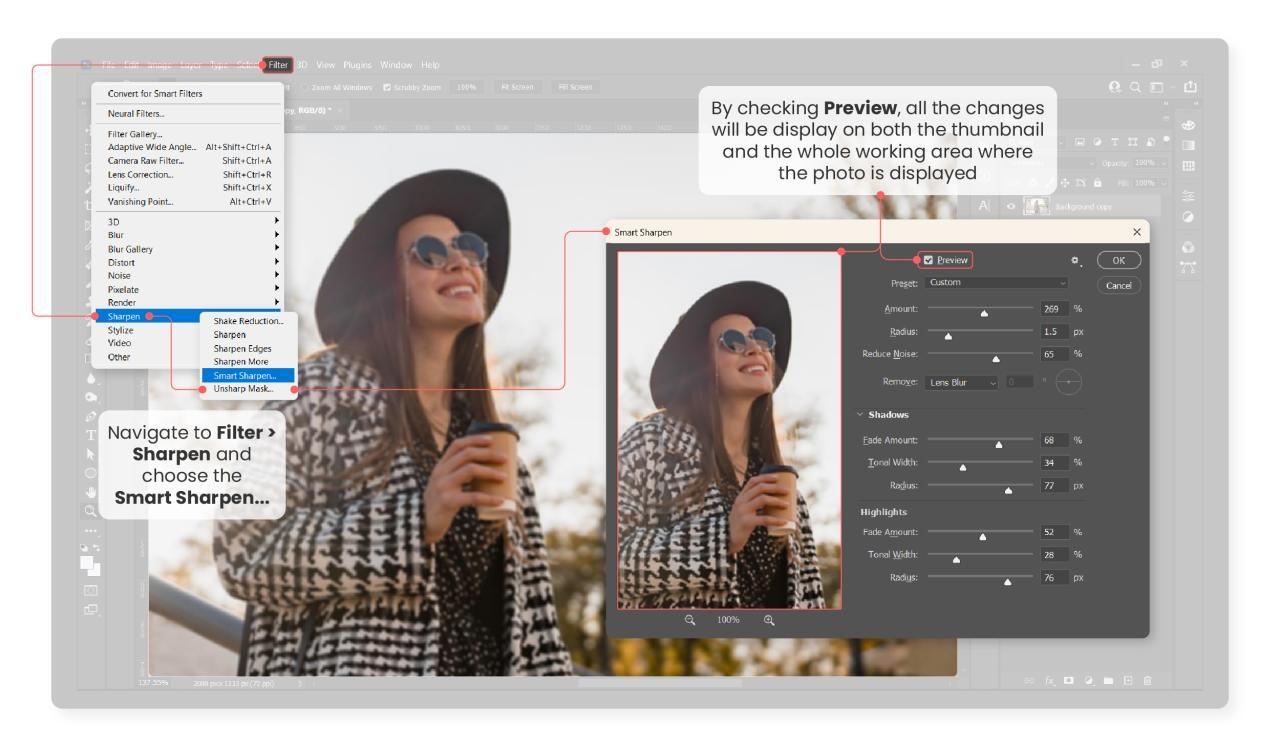
Image sharpness is a critical aspect of photography that affects the overall quality and impact of an image. It refers to the clarity and detail of an image, which enhances the viewer’s ability to perceive fine details. High image sharpness can draw attention to the subject, create a sense of depth, and evoke emotions, making it an essential consideration for both amateur and professional photographers.Several factors contribute to image sharpness, including lens quality, camera settings, and the conditions under which the photograph is taken.
A high-quality lens is crucial, as it can significantly reduce aberrations and distortions that lead to softer images. Proper camera settings, such as aperture, shutter speed, and ISO, also play a pivotal role. For instance, using a wide aperture can create a shallow depth of field, while a narrow aperture increases the depth of field, influencing how sharp different areas of the image appear.
Perceived Sharpness vs. Actual Sharpness
Understanding the difference between perceived sharpness and actual sharpness is vital for photographers aiming to enhance their images accurately. Perceived sharpness refers to how sharp an image appears to the human eye, which can be influenced by contrast, color saturation, and image processing techniques. Conversely, actual sharpness relates to the true detail captured by the camera sensor, which can be quantified through resolution and lens performance.In photography, perceived sharpness can be enhanced through various post-processing techniques, such as sharpening filters.
However, this can lead to unnatural artifacts if not applied judiciously. To further illustrate this distinction, consider the following points:
- Resolution: The pixel count of an image sensor determines the actual sharpness. Higher resolution images have more data, allowing for finer details to be captured.
- Contrast: Images with higher contrast may appear sharper to the eye, even if the actual sharpness is low. This is often used in editing to enhance the perceived sharpness.
- Lens Quality: A high-quality lens will outperform a lower-quality one in terms of actual sharpness, capturing more detail with less distortion.
- Focus Accuracy: Accurate focus is essential; slight misfocus can lead to significant perceived sharpness loss.
“Perceived sharpness can be manipulated through editing, but true sharpness is defined by the quality of the lens and the camera sensor.”
Common Techniques for Sharpening Images
Image sharpening is an essential aspect of photo editing that enhances the clarity and detail of an image. By utilizing various sharpening techniques, photographers and editors can significantly improve the visual quality of their images, ensuring that they stand out in a competitive visual landscape. In this section, we will explore several common techniques employed in popular photo editing software, along with their advantages and disadvantages.
Overview of Sharpening Techniques
Several techniques are commonly used for image sharpening in photo editing software. Each technique has its own unique characteristics, which can be advantageous depending on the specific requirements of the image being edited. The most widely used sharpening methods include:
- Unsharp Mask: This technique enhances the contrast of the edges in an image by increasing the luminance of pixels surrounding them.
- High Pass Filter: This method emphasizes the edges by identifying and enhancing high-frequency details while leaving the low-frequency areas largely unaffected.
- Smart Sharpen: This technique offers more control over the sharpening process by allowing adjustments to shadow and highlight areas, reducing artifacts in the resultant image.
- Clarity Adjustment: While not a traditional sharpening method, clarity adjustments can enhance mid-tone contrast, leading to a perceived increase in image sharpness.
Applying Unsharp Mask Effectively
Unsharp Mask is a widely utilized sharpening technique that can yield excellent results when applied correctly. The following steps Artikel the process for applying the Unsharp Mask filter:
- Open the image in your photo editing software.
- Navigate to the filter menu and select ‘Sharpen’ followed by ‘Unsharp Mask.’
3. Adjust the three primary settings
Amount
Determines how much to increase the contrast of the edges.
Radius
Specifies the size of the area around each pixel that will be affected; a smaller radius is best for fine details, while a larger radius may be used for larger features.
Threshold
Controls how different the sharpened pixels must be from the surrounding area before they are sharpened; a higher threshold prevents noise from being affected.
Preview the changes and adjust the sliders until the desired effect is achieved, then apply the filter.
Using High Pass Filter for Precision
The High Pass Filter method provides a precise approach to sharpening images by isolating edges and enhancing them without impacting the overall image. Here’s how to effectively employ this technique:
- Duplicate the image layer in your editing software.
- Go to the filter menu and select ‘Other’ followed by ‘High Pass.’
- Adjust the radius to define the level of detail you wish to sharpen. A low radius captures fine details, while a higher radius emphasizes broader edges.
- Change the layer blending mode to ‘Overlay’ or ‘Soft Light’ to integrate the sharpening effect with the original image.
- Fine-tune the opacity of the layer to control the intensity of the sharpening effect.
Pros and Cons of Sharpening Techniques
Each sharpening technique has its own set of advantages and disadvantages, which can influence the choice of method depending on the specific requirements of the image.
Unsharp Mask is effective for general sharpening but can introduce artifacts if over-applied.
High Pass Filter provides high control over edges but may require more manual adjustments to achieve the desired outcome.
- Unsharp Mask:
- Pros: Simple to use, widely available in most software, provides good overall results.
- Cons: Can produce halos and artifacts, especially in high-contrast areas if not applied carefully.
- High Pass Filter:
- Pros: Offers precise control over sharpening, minimizes noise, and enhances edge definition effectively.
- Cons: May require more steps and understanding of layer management, can be less intuitive for beginners.
Best Practices for Sharpening Images
When it comes to sharpening images, understanding the context and purpose of the image is essential for achieving the best results. Proper sharpening not only enhances the overall clarity of an image but also helps in delivering the intended message. This section will cover the ideal scenarios for sharpening images, how to assess the need for sharpening based on image type and purpose, and a comprehensive checklist of best practices for optimal image sharpness.
Ideal Scenarios for Sharpening Images
Sharpening is best utilized in specific situations where enhancement of detail is necessary. In most cases, sharpening should be applied to images that will be printed or displayed on high-resolution screens, where fine details can be observed. Conversely, there are instances where sharpening should be avoided, as it can lead to undesirable outcomes.
- Sharpen images that require clarity, such as portraits, landscapes, or product photography.
- Avoid sharpening images that are already crisp and clear, or those that are heavily compressed, as this could introduce noise.
Assessing the Need for Sharpening
The assessment of whether an image needs sharpening can be determined by analyzing the image type and its intended use. Different types of images respond differently to sharpening.
- For digital art and illustrations, a minimal amount of sharpening can enhance edges without compromising quality.
- In contrast, photographs with low resolution or those taken in poor lighting conditions may benefit significantly from sharpening to recover lost detail.
- Consider the final output medium; images destined for print typically require more sharpening than those intended for online use due to differences in resolution.
Checklist of Best Practices for Achieving Optimal Image Sharpness
Following a structured approach to image sharpening can lead to optimal results. Here is a checklist of best practices to keep in mind:
- Always work on a duplicate of the original image to preserve the untouched version.
- Use a calibrated monitor to ensure accurate representation of sharpness.
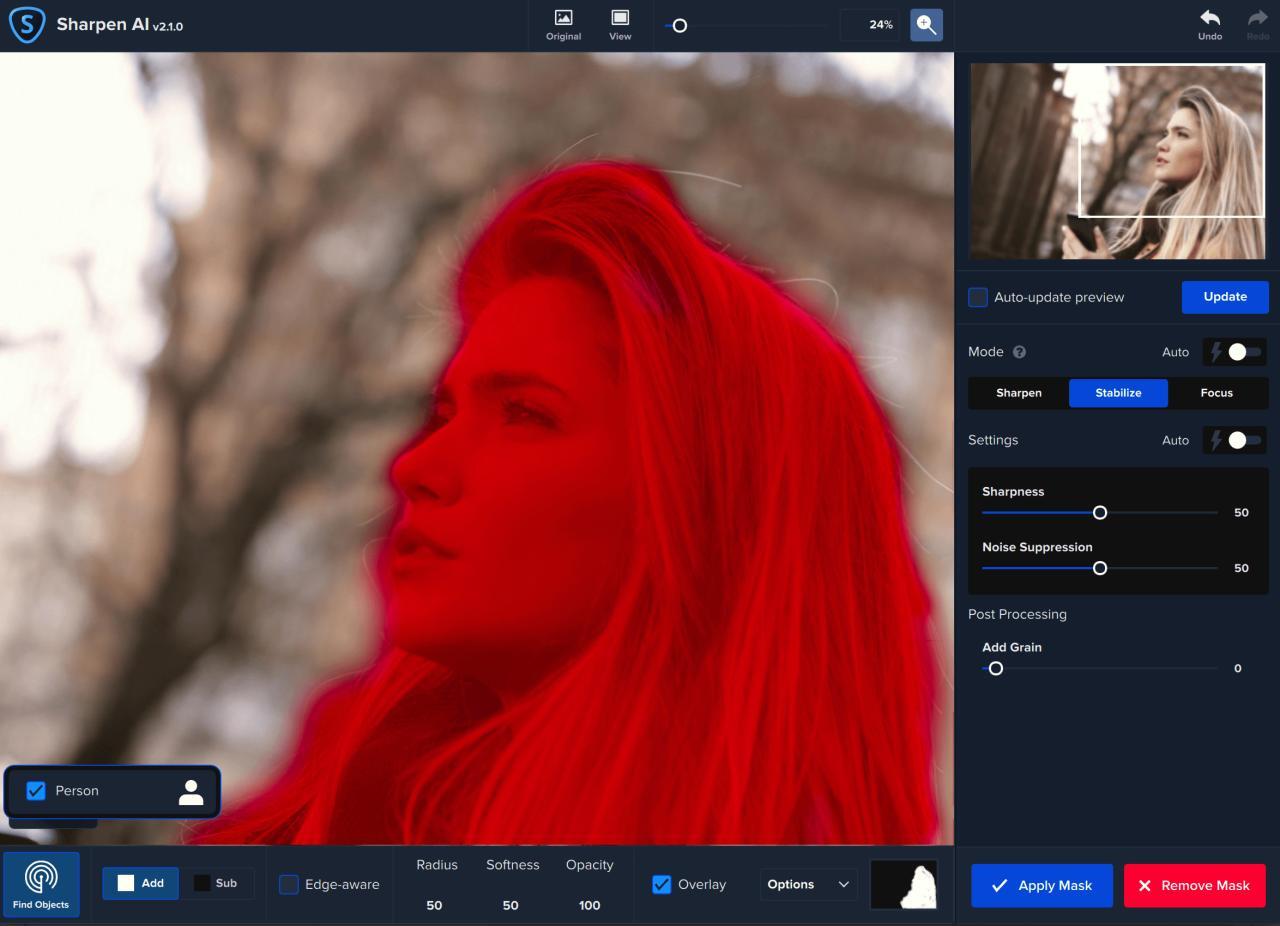
- Apply sharpening selectively; use masking techniques to focus on areas that require enhancement while protecting smoother areas, such as skin.
- Adjust the sharpening settings based on the specific image characteristics, including resolution and intended print size.
- Utilize tools such as the Unsharp Mask or High Pass filter for greater control over the sharpening process.
- Review the image at 100% zoom to accurately assess the effects of sharpening.
“Sharpening is not a one-size-fits-all approach; it requires careful consideration of the image’s needs.”
Tools and Software for Image Sharpening

Image sharpening is a critical process in image editing that enhances the clarity and detail of photographs. To achieve the best results, various tools and software are available, each offering unique features and functionalities tailored for both amateur and professional photographers. Understanding these options helps users select the right software for their specific needs in sharpening images effectively.
Popular Software Options for Image Sharpening
Several software applications are renowned for their image sharpening capabilities. Below is a detailed overview of some of the most popular tools, including Adobe Photoshop and Lightroom, highlighting their features and effectiveness.
| Software | Key Features | Usability |
|---|---|---|
| Adobe Photoshop | Advanced sharpening filters, Smart Sharpen, High Pass filter | Professional-grade, steep learning curve |
| Adobe Lightroom | Detail panel for sharpening, noise reduction options | User-friendly, ideal for batch processing |
| GIMP | Unsharp Mask, High Pass filter, free and open-source | Flexible, requires some technical knowledge |
| Affinity Photo | Frequency separation, inpainting, and advanced filters | Intuitive interface, affordable one-time purchase |
| Capture One | High-quality sharpening with extensive control over details | Professional software with a learning curve |
The comparison above illustrates the main features of various image editing software options. Each tool has its strengths, catering to different types of users, from novices to seasoned professionals.
Effective Use of Built-in Sharpening Tools
To maximize the potential of sharpening tools within these software programs, consider the following tips:
1. Understand the Context
Always assess the original image quality before applying sharpening. An image with a lot of noise may not benefit from aggressive sharpening techniques.
2. Utilize Preview Options
Most software allows users to preview changes in real-time. Use this feature to gauge the effectiveness of sharpening adjustments without committing them immediately.
3. Adjust Amount and Radius Wisely
When using tools like the Unsharp Mask, adjust both the Amount (the strength of the sharpening) and Radius (the size of the area around edges that will be affected) carefully to avoid halos.
4. Combine Techniques
Different software may provide various sharpening techniques (e.g., Smart Sharpen in Photoshop vs. Detail panel in Lightroom). Experiment with these methods in conjunction to achieve superior results.
5. Use Layering
In Photoshop, consider applying sharpening on a duplicate layer. This allows for non-destructive editing and easy adjustments as needed.
By following these guidelines, users can enhance their image sharpness effectively, ensuring clarity and detail for a polished final product.
Fine-Tuning Sharpening Settings
Adjusting sharpening settings is crucial for achieving optimal image quality. The primary parameters to consider include amount, radius, and threshold, each of which plays a distinct role in enhancing the perceived sharpness of an image. Understanding how to fine-tune these settings based on the image resolution and intended output size can significantly impact the final result.
Adjusting Key Sharpening Parameters
When fine-tuning sharpening settings, it is essential to grasp the function of each parameter:
- Amount: This setting determines how much sharpening is applied. A higher amount increases the contrast at the edges, which can enhance sharpness but may lead to unnatural results if overused.
- Radius: Radius refers to the width of the edges that are affected by the sharpening. A smaller radius is effective for fine detail, while a larger radius can be used for broader edges in less detailed images.
- Threshold: This parameter controls how different the sharpened pixels must be from the surrounding area before they are considered for sharpening. A higher threshold prevents noise from being sharpened, which is especially important in images with significant grain or texture.
Fine-tuning these settings should be influenced by the resolution of the image and the size at which it will be printed or displayed. For instance, a high-resolution image intended for large print will require different settings compared to a lower-resolution image meant for web display.
Examples of Specific Settings for Different Image Types
Adjusting sharpening settings can vary significantly based on the type of image being processed. Below are suggested settings tailored for specific categories of images:
“The right sharpening settings can enhance the visual impact of an image while maintaining a natural appearance.”
- Landscapes: For landscapes, a moderate amount (around 150%) with a radius of 1.0 pixels and a threshold of 10 can bring out the details in the foliage and sky without introducing too much noise.
- Portraits: When working with portraits, it is advisable to use a lower amount (around 120%), a smaller radius (0.8 pixels), and a threshold of 5 to preserve skin tones and details while avoiding harshness in the facial features.
- Macro Photography: In macro photography, where texture is paramount, a higher amount (200%) with a radius of 1.5 pixels and a threshold of 15 can effectively enhance intricate details without losing the overall softness of the subject.
By understanding and utilizing these parameters effectively, photographers can achieve the desired sharpness and clarity in their images, tailored to their specific needs and output requirements.
Evaluating the Results of Sharpening
Critically evaluating the results of image sharpening is essential for ensuring that the desired enhancement has been successfully achieved without introducing artifacts or degrading the image quality. This process involves a careful analysis of both sharpened and unsharpened versions of an image to identify areas of improvement and potential over-processing.When assessing sharpened images, there are several techniques that can be employed to gauge their quality.
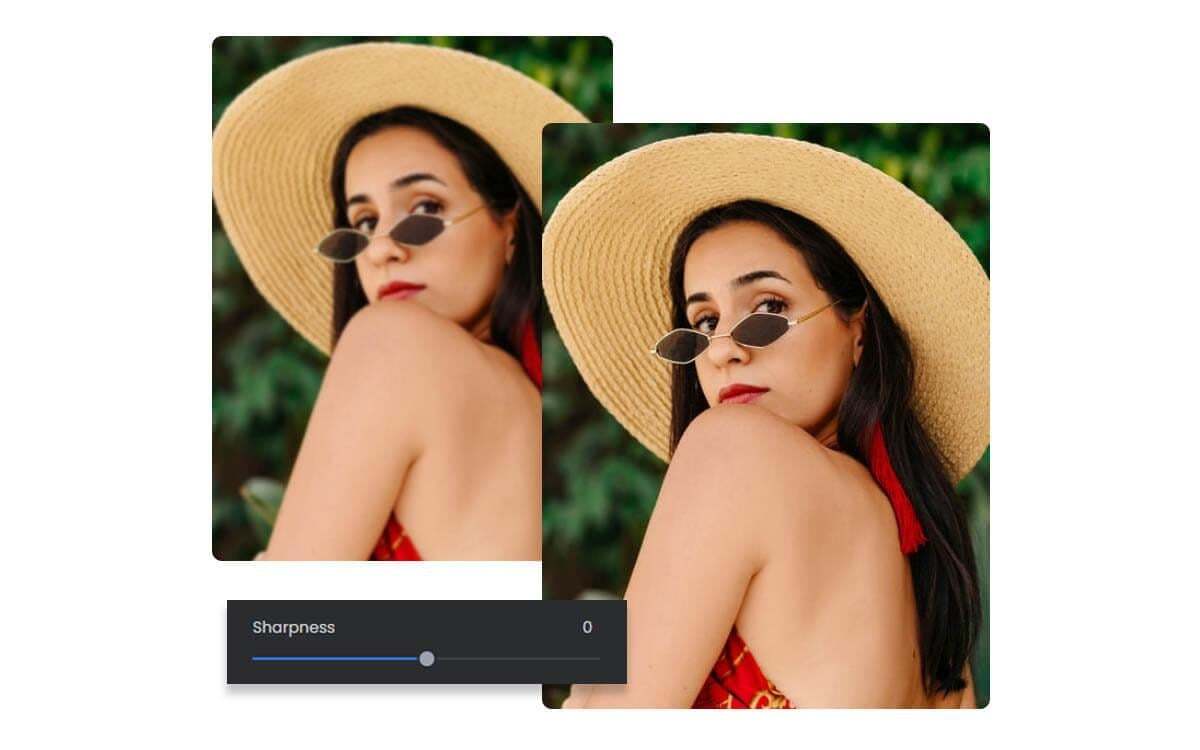
Comparing sharpened and unsharpened images side by side is a common practice that allows for a direct evaluation of the effectiveness of sharpening techniques. This comparison helps in understanding how much detail has been enhanced and whether the sharpening process has introduced any unwanted noise or halo effects.
Side-by-Side Comparison of Images
A side-by-side comparison is an effective method to visualize the differences in sharpness between images. This technique not only highlights improvements but also pinpoints any areas that may have suffered from over-sharpening. Consider the following aspects when making this comparison:
- Zoom Level: Ensure that both images are viewed at the same zoom level to accurately assess sharpness. A common zoom level is 100%, as it provides a true representation of the image detail.
- Focus on Details: Pay attention to fine details, such as textures in fabrics or the intricate patterns in nature. These details should appear clearer in the sharpened image.
- Evaluate Noise Levels: Observe whether the sharpened image contains an increase in noise or graininess. Successful sharpening should enhance detail without introducing excessive noise.
- Look for Halo Effects: Be cautious of halo artifacts that can appear as unnatural borders around edges. An effective sharpening will maintain the integrity of the image without creating these unwanted artifacts.
In evaluating sharpened images, visual cues play a crucial role in determining the success of the sharpening process. The following indicators can help differentiate between successful sharpening and over-sharpening:
“Successful sharpening enhances detail while preserving natural appearance; over-sharpening introduces noticeable artifacts.”
Key visual cues to consider include:
- Clarity vs. Artifacts: A well-sharpened image retains clarity without showing signs of harsh lines or edges. In contrast, over-sharpened images exhibit pronounced edges that can detract from the overall quality.
- Natural Transitions: Look for smooth transitions in areas of color or tone. Successful sharpening maintains the gradient and subtle changes in these transitions, while over-sharpening can lead to abrupt changes.
- Subject Focus: The main subject of the image should remain the focal point without distractions from sharpening artifacts. If the background or other elements become overly pronounced, it may indicate over-sharpening.
By utilizing these techniques and visual cues, one can effectively evaluate the results of sharpening and ensure that the final images meet the desired standards of quality and clarity.
Advanced Sharpening Techniques

In the realm of image enhancement, mastering advanced sharpening techniques is essential for photographers and digital artists aiming for precision and clarity in their works. These methods allow for not just global adjustments but also targeted enhancements that can significantly improve the visual impact of specific areas within an image. This section delves into sophisticated approaches to sharpening, including the use of layer masks, adjustment layers, and the technique of frequency separation.
Selective Sharpening Methods
Selective sharpening focuses on enhancing specific areas of an image rather than applying a uniform sharpness across the entire photograph. This approach is particularly useful in images where certain elements, such as eyes in a portrait or intricate details in a landscape, need to stand out while preserving the softness of other areas. To implement selective sharpening effectively, consider the following techniques:
- Masking Techniques: Utilize layer masks to apply sharpening to specific regions without affecting the entire image. This allows for precise control over which areas are enhanced and to what degree.
- Selective Focus: Using adjustment layers, such as Curves or Levels, can help enhance contrast and sharpness in selected areas. By making localized adjustments, the focus can be shifted to the most important parts of the image.
- Brush Tool Sharpening: Employing the brush tool on a new layer allows you to manually paint in sharpness, giving you ultimate control over the areas that require enhancement.
Layer Masks and Adjustment Layers in Sharpening
Layer masks and adjustment layers play a vital role in the sharpening process, allowing for non-destructive editing and fine-tuning of image adjustments. The benefits of using these tools include:
- Non-destructive Editing: By applying sharpening effects on separate layers, the original image remains untouched, enabling you to revert to the original at any time.
- Precision Control: Layer masks allow you to mask out areas where sharpening is not desired, ensuring a natural look while enhancing details in specific regions.
- Adjustment Layer Options: Adjustment layers provide a variety of tools—such as High Pass filters—that can be combined effectively with layer masks for advanced sharpening techniques.
Tutorial on Frequency Separation for Advanced Sharpening
Frequency separation is an advanced image editing technique that enables photographers to separate the fine details (high frequency) from the overall tonal and color information (low frequency) of an image. This method proves invaluable in refining sharpness without compromising the image’s natural quality.To apply frequency separation for sharpening, follow these steps:
1. Duplicate the Image Layer
Start by duplicating the background layer twice so you have three layers in total: the background, the high-frequency layer, and the low-frequency layer.
2. Apply Gaussian Blur to the Low-Frequency Layer
Select the low-frequency layer and apply a Gaussian Blur filter. The amount of blur will depend on the image, but aim to smooth out the details while retaining the overall shape and color.
3. Subtract the Low Frequencies
Set the high-frequency layer’s blending mode to ‘Linear Light’. This allows the details to be visible while the low frequencies remain blended.
4. Sharpen the High-Frequency Layer
Use a sharpening filter, such as High Pass, on the high-frequency layer. Adjust the radius until the desired sharpness is achieved, focusing on enhancing the fine details without making the image look unnatural.
5. Use Layer Masks for Fine-Tuning
If certain areas are overly sharpened, apply a layer mask and use a soft brush to paint over those areas, reducing the effect as needed.This technique not only enhances sharpness but also maintains the integrity of smooth gradients and skin tones, making it especially popular in portrait retouching.
Techniques for Printing and Web Use
Sharpening images appropriately is crucial for both print and web applications, as these mediums have different requirements and characteristics. The right techniques and settings can enhance the visual quality of images, ensuring they are crisp and clear in their respective formats. Understanding the distinctions in sharpening approaches for print versus web use is vital for achieving optimal results.
Differences in Sharpening Techniques
When preparing images for print versus web, the techniques employed for sharpening must be carefully selected to suit the medium’s specific demands. Print images typically require more detail and depth due to the higher resolution and physical nature of the medium, whereas web images need to remain sharp while being optimized for quicker loading times and lower resolutions.
For print images, the following considerations are essential:
- High Resolution: Images intended for print should generally be sharpened at a higher resolution, typically 300 DPI or more. This ensures that fine details remain intact when printed.
- Output Size: The size of the printed image affects how sharpening settings are adjusted. Larger prints may require more aggressive sharpening to compensate for the distance from which they will be viewed.
- Media Type: Different printing methods (such as glossy, matte, or canvas) react differently to sharpening. For instance, glossy prints may require less sharpening compared to matte prints, which can absorb light and diminish sharpness.
In contrast, sharpening for web use involves different parameters:
- Screen Resolution: Web images are typically displayed at 72 DPI, necessitating less aggressive sharpening. Over-sharpening can lead to artifacts that become apparent on-screen.
- File Size and Compression: Optimizing images for web use often involves compressing files to reduce loading times. It is crucial to strike a balance between sharpness and file size to ensure a good user experience.
- Responsive Design: Web images may be displayed across various devices and screen sizes, hence sharpening settings should be consistent while allowing for flexibility to maintain clarity on different displays.
Sharpening Settings Based on Print Size and Media Type
The sharpening settings employed will vary based on both the size of the print and the type of media being used. Here are key considerations for determining the appropriate settings:
- Small Prints: For prints sized 4×6 inches, a moderate amount of sharpening is typically adequate. A setting of around 70-80% amount may be appropriate.
- Medium Prints: For larger prints, like 8×10 inches, increase the sharpening to 80-90%, ensuring that details remain sharp without introducing undesirable artifacts.
- Large Prints: In cases of prints larger than 16×20 inches, a more aggressive sharpening approach may be warranted, potentially reaching 100% amount, especially for fine art prints on canvas.
Exporting Images for Optimal Sharpness Online
When exporting images for online platforms, it is essential to maintain a high level of sharpness while ensuring the files remain web-friendly. The following guidelines help achieve this balance:
- Choose the Correct Format: Use JPEG for photographs and PNG for images requiring transparency. JPEG allows for smaller file sizes with tolerable quality loss.
- Sharpen After Resizing: Always apply sharpening after resizing the image to its final dimensions. This helps maintain clarity at the intended display size.
- Use Export Settings: When exporting, ensure to adjust the settings to include a slight increase in sharpness, which can compensate for any loss during compression.
- Test Across Devices: Before finalizing the images for web use, view them on different devices and screens to ensure uniform sharpness and clarity.
Conclusive Thoughts
In conclusion, sharpening your images the right way involves a careful balance of techniques and tools to achieve the desired results. By understanding the principles behind image sharpness and applying best practices, you can enhance your photographs effectively while avoiding common pitfalls like over-sharpening. Armed with the knowledge from this guide, you are now better equipped to make informed decisions about sharpening images for both print and web use, ensuring your visuals are always presented at their best.