How to Retouch Portraits in Photoshop is an essential skill for photographers and digital artists alike, enhancing the beauty and impact of portraits while preserving the subject’s authenticity. In this guide, we will explore the significance of portrait retouching, commonly employed techniques, and the powerful tools available in Photoshop to achieve stunning results. From the basics of blemish removal to advanced methods like frequency separation and color grading, this comprehensive overview is designed to elevate your retouching skills.
As we delve deeper into the intricacies of portrait retouching, you will learn how to prepare your images effectively, apply basic and advanced techniques, and discover ways to enhance specific features such as eyes and lips. The journey through this content not only focuses on technical proficiency but also emphasizes the importance of a balanced approach that maintains realism while showcasing the subject’s best qualities.
Understanding Portrait Retouching
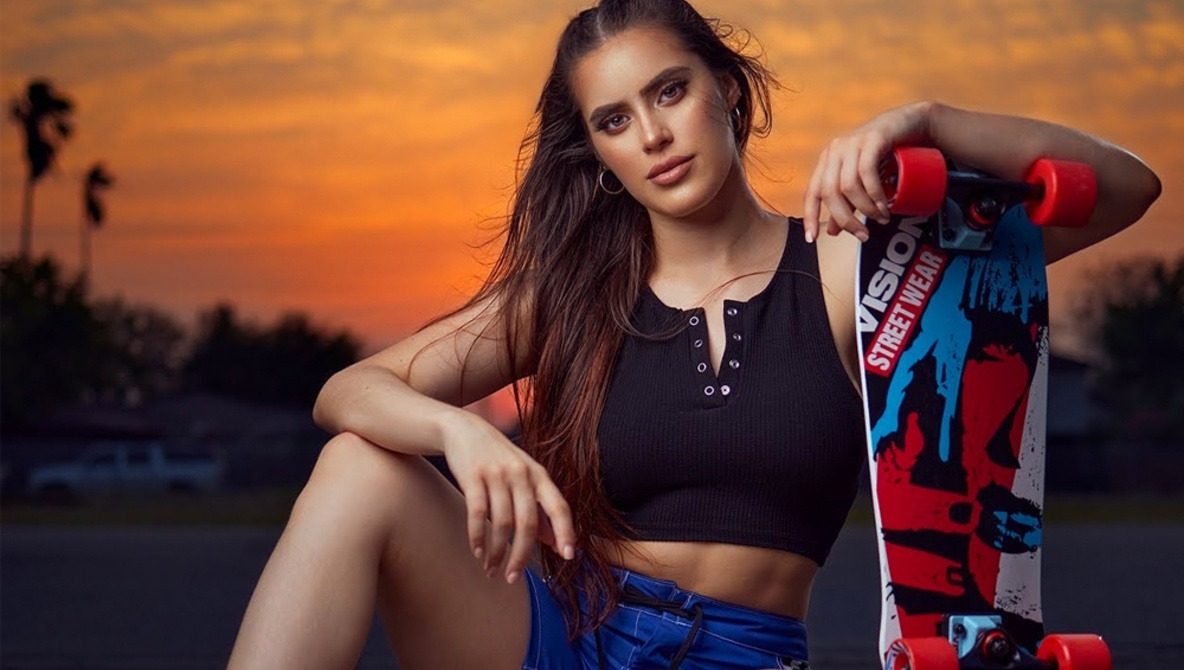
Portrait retouching plays a critical role in photography, enhancing the visual appeal of the subject while preserving their natural essence. It serves to boost the overall quality of images, making them more engaging and professional. In an age where digital imagery dominates, mastering the art of retouching is essential for photographers aiming to leave a lasting impression on their audience.
Retouching techniques focus on improving a portrait’s aesthetic without detracting from the subject’s individuality. This process typically involves correcting blemishes, enhancing skin texture, adjusting colors, and refining facial features. By employing these methods, photographers can create images that resonate more deeply with viewers, making the subjects appear their best while still looking authentic.
Common Techniques in Portrait Retouching
To effectively retouch portraits, several common techniques can be employed. Each of these techniques addresses specific aspects of the portrait, ensuring a comprehensive enhancement of the image.
- Skin Smoothing: Utilizing tools like the ‘Healing Brush’ and ‘Clone Stamp’ to remove imperfections such as acne, scars, or wrinkles, while maintaining the natural texture of the skin.
- Color Correction: Adjusting the color balance and saturation to achieve natural skin tones. This can be done using the ‘Hue/Saturation’ and ‘Selective Color’ adjustments.
- Sharpening Eyes: Enhancing the eyes by increasing contrast and brightness to draw attention. This often involves using the ‘Dodge Tool’ to lighten the whites of the eyes and the ‘Sharpen’ filter to define the iris.
- Teeth Whitening: Brightening teeth using the ‘Lasso Tool’ and ‘Hue/Saturation’ adjustment layer to create a more inviting smile.
- Background Blur: Simulating depth of field by softening the background with the ‘Gaussian Blur’ filter, allowing the subject to stand out more prominently.
Essential Photoshop Tools for Retouching
Photoshop offers a variety of powerful tools specifically designed for portrait retouching. Understanding these tools and their applications can significantly improve retouching outcomes.
- Spot Healing Brush Tool: Ideal for quickly removing small blemishes or distractions from the image without needing to sample nearby pixels.
- Clone Stamp Tool: Allows for detailed retouching by sampling pixels from one part of the image to cover imperfections in another.
- Patch Tool: Enables users to replace unwanted areas with a surrounding texture, perfect for larger blemishes or uneven skin.
- Adjustment Layers: Non-destructive layers that provide flexibility in color correction and contrast adjustments, allowing for easy tweaks as needed.
- Liquify Filter: A powerful tool for reshaping facial features subtly, such as adjusting the size of the nose or enhancing cheekbones.
“Effective portrait retouching balances enhancement with authenticity, ensuring that the subject’s true character shines through.”
Preparing Your Images for Retouching
Preparing your images for retouching is a critical step that sets the foundation for the entire editing process. Proper preparation ensures that you work with high-quality images and have an organized workspace, ultimately leading to more efficient editing and better results. This segment delves into the essential steps for importing, organizing images, and assessing their quality before commencing retouching in Photoshop.
Importing and Organizing Images
Importing and organizing your images in Photoshop is vital for a streamlined editing process. Follow these steps to ensure your images are ready for retouching:
1. Import Images
Start by launching Photoshop and navigating to ‘File’ > ‘Open.’ Select the images you wish to import from your storage device. You can also use ‘Bridge’ for a more comprehensive import experience, allowing for batch selections.
2. Create Folders
Organize imported images into specific folders based on criteria such as project, date, or subject. This hierarchical structure aids in quick access and retrieval.
3. Rename Files
Use descriptive naming conventions for your files, which can include details like the shoot date, subject name, or specific settings. This practice helps maintain clarity, especially when working with numerous images.
4. Tagging and Rating
Utilize s, ratings, and color labels within Bridge or Photoshop to categorize and prioritize your images. This additional layer of organization enhances efficiency during the editing phase.
Setting Up the Workspace
Establishing a well-configured workspace is crucial for effective image editing. An optimal workspace can improve focus and productivity. Here are essential elements to consider when setting up your workspace in Photoshop:
Workspace Layout
Choose a workspace layout that best suits your editing style. You can select from predefined workspaces like ‘Photography,’ ‘Painting,’ or customize your own by arranging panels such as Layers, History, and Tools according to personal preference.
Panel Customization
Ensure that frequently used panels are easily accessible. You may dock panels together or keep them floating based on your comfort level.
Keyboard Shortcuts
Familiarize yourself with essential keyboard shortcuts, as this can significantly speed up your workflow. Customizing shortcuts for tools you use frequently can lead to more efficient editing sessions.
Color Calibration
Ensure your monitor is color-calibrated to maintain consistent color representation while editing. This step is critical for achieving accurate colors in your portraits.
Assessing Image Quality
Before diving into retouching, assessing the quality of your images is imperative to determine the extent of required edits. Here are methods to evaluate the quality of your images effectively:
Check Exposure
Review your images for proper exposure. Images that are overexposed will lose detail in highlights, while underexposed images may have lost detail in shadows. Use the Histogram tool in Photoshop for a visual representation of exposure levels.
Inspect Sharpness
Evaluate the sharpness of your images. Zoom in to 100% and check for focus accuracy. If an image appears soft or blurry, consider whether retouching can sufficiently enhance sharpness or if a reshoot may be necessary.
Look for Noise
Assess images for noise, particularly in shadow areas or high ISO shots. Use the ‘Reduce Noise’ filter in Photoshop if necessary, acknowledging that excessive noise reduction can lead to loss of detail.
Evaluate Composition
Lastly, consider the composition of your portrait images. Assess elements such as framing, alignment, and balance. Sometimes, cropping or adjusting composition can significantly enhance the image before retouching.
Basic Techniques for Portrait Retouching
Portrait retouching is an essential skill for photographers and digital artists who wish to enhance their images while maintaining the natural beauty of their subjects. This section will explore fundamental techniques utilized in Photoshop to improve portrait images, focusing on removing blemishes, smoothing skin tones, and adjusting brightness and contrast to accentuate facial features.
Removing Blemishes and Imperfections Using the Spot Healing Brush
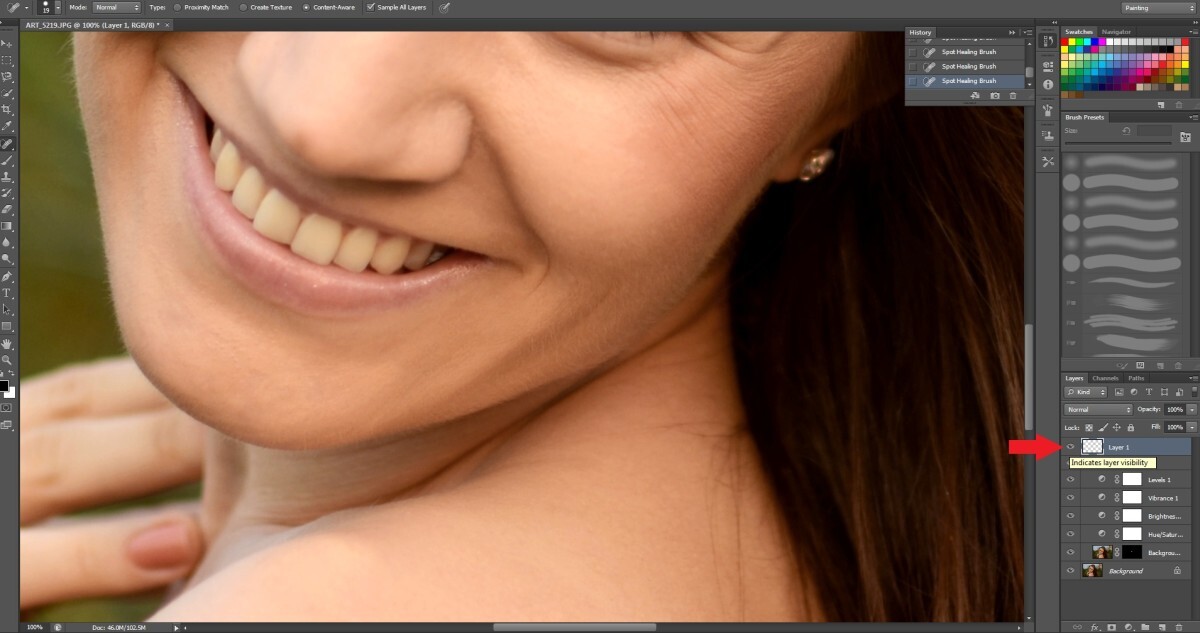
The Spot Healing Brush is a powerful tool in Photoshop that allows for the quick and efficient removal of blemishes and imperfections from a portrait. This tool automatically samples pixels from the surrounding area, blending them seamlessly to cover unwanted spots.To effectively use the Spot Healing Brush, follow these steps:
- Select the Spot Healing Brush tool from the toolbar, or press the keyboard shortcut ‘J’.
- Adjust the brush size to match the area you wish to retouch. A smaller brush size is ideal for precision work on blemishes.
- Ensure the “Content-Aware” option is selected in the options bar for optimal results.
- Carefully click on the blemishes or imperfections in the portrait. The tool will automatically blend the selected area with surrounding pixels.
This technique is particularly useful for minor skin issues, such as acne or small scars, ensuring a smooth and professional finish.
Smoothing Skin Tones with the Clone Stamp and Healing Brush Tools
Achieving smooth and even skin tones is crucial in portrait retouching. The Clone Stamp and Healing Brush tools serve distinct but complementary purposes in this process, allowing for a natural look.The Clone Stamp tool copies pixels from one part of the image and applies them to another. This is particularly effective for larger areas of uneven skin tone.
- Select the Clone Stamp tool and set an appropriate brush size.
- Hold the ‘Alt’ key (or ‘Option’ key on Mac) and click on a clean area of skin to sample.
- Paint over the uneven skin tones, adjusting the brush size as necessary for detailed work.
The Healing Brush, on the other hand, blends the sampled pixels with the target area, making it ideal for minor adjustments.
- Select the Healing Brush tool and choose a soft brush.
- Sample an area of smooth skin by holding ‘Alt’ (or ‘Option’) and clicking on the desired spot.
- Paint over areas requiring smoothing, allowing the Healing Brush to blend seamlessly.
Utilizing both tools can create a polished and natural appearance, enhancing the portrait without compromising the subject’s integrity.
Adjusting Brightness and Contrast to Enhance Facial Features
Adjusting brightness and contrast is a critical step in portrait retouching that can dramatically enhance facial features and the overall image. Proper adjustments can bring depth and dimension to a portrait.To adjust brightness and contrast, follow these guidelines:
- Navigate to the ‘Image’ menu, select ‘Adjustments’, and then choose ‘Brightness/Contrast’.
- Use the sliders to increase or decrease brightness and contrast.
- Increasing brightness can help illuminate facial features, while enhancing contrast can add depth, making features more pronounced.
- Utilize the ‘Preview’ option to see changes in real-time, ensuring the adjustments complement the overall look of the portrait.
Making subtle adjustments can significantly improve the visual appeal of a portrait without overwhelming the image.
In summary, mastering these basic techniques in Photoshop allows for effective portrait retouching that preserves the subject’s natural beauty while enhancing visual impact. By removing blemishes, smoothing skin tones, and adjusting brightness and contrast, one can achieve striking and professional results in portrait photography.
Advanced Retouching Techniques
In the realm of portrait retouching, advanced techniques such as frequency separation, Dodge and Burn, and color grading can transform an image significantly. These methods allow for detailed texture work, enhancing the depth of features, and setting the mood of a photograph, ultimately elevating the quality of the portrait. Mastery of these techniques can greatly enhance a photographer’s or retoucher’s ability to produce stunning, professional results.
Frequency Separation in Skin Retouching
Frequency separation is an advanced retouching technique that separates an image into two layers: one for texture (high frequency) and one for color and tonal information (low frequency). This allows for more precise edits without affecting the overall integrity of the skin texture.
To execute frequency separation, follow these steps:
- Open your portrait in Photoshop.
- Create two duplicate layers of the background layer. Rename the top layer to “High Frequency” and the second layer to “Low Frequency.”
- Select the “Low Frequency” layer and apply a Gaussian Blur filter. Adjust the radius until the skin’s texture is almost entirely blurred, keeping the overall form of the face.
- Now, select the “High Frequency” layer. Go to Image > Apply Image. Set the Layer to “Low Frequency,” Blending to “Subtract,” and Scale to 2 and Offset to 128. Click OK.
- Change the blend mode of the “High Frequency” layer to “Linear Light.”
- Using the Healing Brush or Clone Stamp, retouch areas of the low-frequency layer to smooth skin tones without losing texture.
This technique allows for targeted corrections, making it easier to maintain the authenticity of skin texture while achieving a flawless appearance.
Dodge and Burn Technique
The Dodge and Burn technique is pivotal in portrait retouching, as it emphasizes the natural contours of the face, enhancing features such as cheekbones, jawlines, and the overall three-dimensionality of the subject.
The process to use Dodge and Burn effectively involves the following steps:
- Create a new layer and set it to “Soft Light.” Fill this layer with 50% gray.
- Select the Dodge Tool to lighten areas of the image, such as highlights on the cheekbones or forehead.
- Utilize the Burn Tool to darken shadowed areas, enhancing the contour of the jawline or under the chin.
- Adjust the exposure of the Dodge and Burn tools to ensure subtlety; generally, a lower exposure around 10-20% works best.
- Continue to build up layers of light and shadow gradually to maintain a natural look.
This technique emphasizes depth and helps create a more dynamic and engaging portrait by sculpting the face’s features effectively.
Application of Color Grading
Color grading is essential in portrait photography, as it influences the mood, emotion, and storytelling of an image. Properly applied, color grading can elevate an ordinary photo to an extraordinary work of art.
To implement effective color grading, consider the following elements:
- Begin with an adjustment layer such as Color Balance or Curves to tweak the overall tones of your image.
- Experiment with Split Toning to add specific colors to the highlights and shadows, which can create a cohesive look.
- Utilize Color Lookup Tables (LUTs) to apply predefined color schemes, offering a quick way to explore different moods.
- Fine-tune the saturation and vibrance to avoid oversaturation, ensuring that skin tones remain natural.
Through careful color grading, photographers can evoke feelings ranging from warmth and nostalgia to coolness and detachment, guiding the viewer’s emotional response to the portrait.
Enhancing Eyes and Lips
Enhancing the eyes and lips in portrait retouching is crucial for drawing attention and adding emotional depth to an image. This section will detail the steps necessary to brighten and enhance these facial features, ensuring a natural and appealing result.
Brightening Eyes and Enhancing Color
Brightening the eyes and enhancing their color can significantly impact the overall quality of a portrait. This process involves several key steps to achieve a vibrant yet natural look.
1. Selection
Begin by using the Lasso Tool or Quick Selection Tool to carefully Artikel the eyes.
2. Adjustment Layer
Create a new adjustment layer using Curves or Levels to brighten the whites of the eyes. Adjust the sliders gently to avoid overexposure.
3. Enhancing Color
Utilize the Hue/Saturation adjustment layer to amplify the color of the irises. Focus on the yellows and blues to enhance natural eye colors effectively.
4. Dodge and Burn
Employ the Dodge Tool with a low exposure (around 10-15%) to lighten the irises and highlight specific areas, giving them depth. Use the Burn Tool to add shadow where necessary for a more realistic effect.
5. Sharpening
Apply a subtle sharpening effect to the eyes using the Unsharp Mask filter. This will help bring out details like eyelashes and the pupil.
“Natural enhancement is key; avoid making the eyes look artificially altered.”
Adding Gloss and Definition to Lips
Creating the appearance of gloss and definition in lips can elevate the vibrancy of a portrait. This section Artikels effective techniques to achieve this look while maintaining a natural appearance.
1. Lip Selection
Use the Lasso Tool to select the lips carefully, ensuring a clean selection that captures the details.
2. Color Adjustment
Implement a Color Balance adjustment layer to enhance the natural color. Adjust the reds and magentas to make the lips more vibrant.
3. Gloss Effect
Create a new layer and use a soft brush with low opacity to paint a white or light-colored gloss along the center of the lips. Use a Gaussian Blur to soften the edges.
4. Highlighting and Contouring
Apply the Dodge Tool to highlight the cupid’s bow and the center of the lower lip, while using the Burn Tool to contour the edges subtly, creating depth.
5. Final Touches
Use the Smudge Tool lightly to blend any harsh lines and ensure the gloss appears natural.
“Subtle gloss and dimension can transform the lips without making them appear overly glossy.”
Creating a Natural Look
While enhancing facial features, it is essential to maintain a natural look that reflects the subject’s true beauty. Here are tips to achieve a balanced enhancement:
Minimal Adjustments
Make adjustments incrementally. It is better to start subtle and increase intensity as needed.
Use of Layer Masks
Apply adjustments to specific areas using layer masks, allowing for fine-tuning of effects without compromising the overall image.
Focus on Details
Pay close attention to details like skin texture and the natural shape of the features. Enhancements should complement rather than override the subject’s unique characteristics.
Calibration
Always zoom out to view the image as a whole. This practice helps ensure enhancements do not appear excessive when viewed at normal size.
“The goal of retouching is to enhance, not to create a new look.”
Final Touches and Exporting
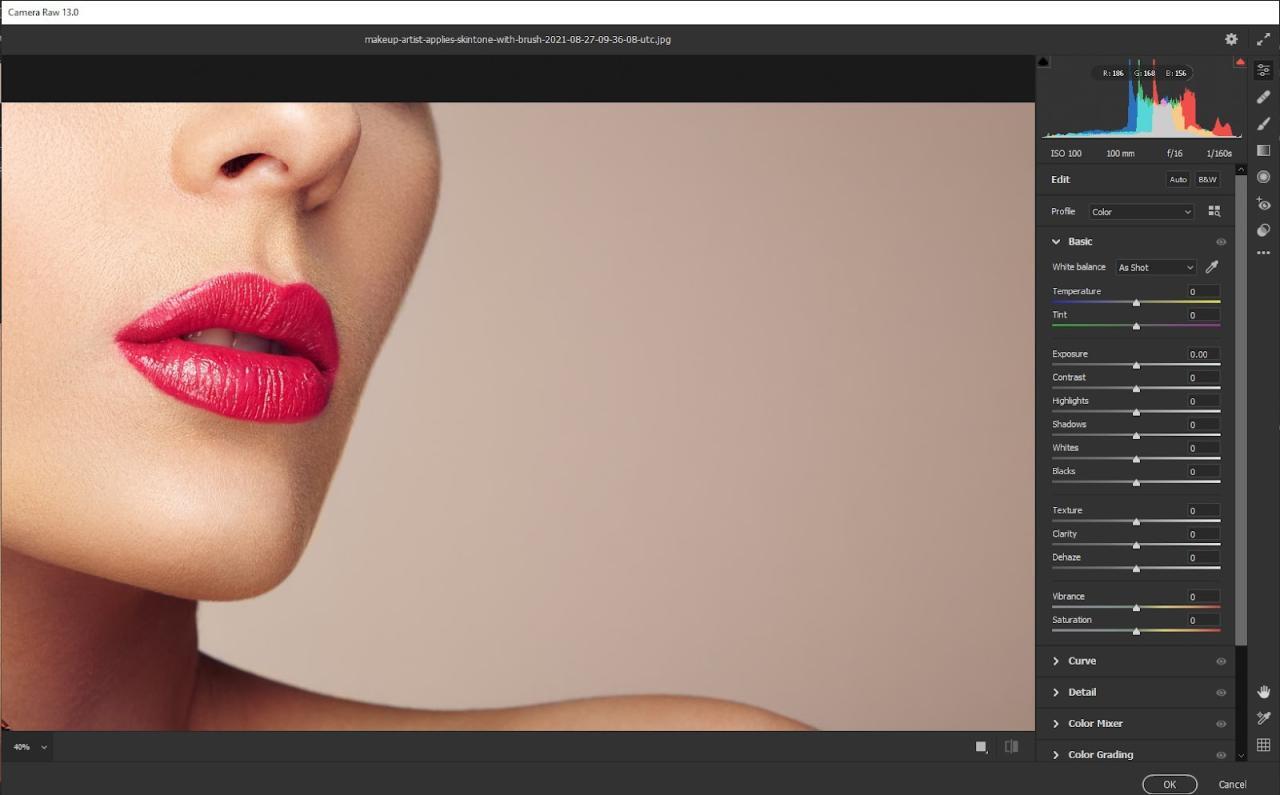
The final touches in portrait retouching are crucial for presenting a polished and professional image. These adjustments not only enhance the overall quality but also ensure that the image meets the specific requirements of various platforms. This section will explore the processes of sharpening, noise reduction, and the importance of maintaining a non-destructive workflow, as well as how to save and export images effectively.
Sharpening and Noise Reduction
In the final stages of retouching, adding sharpening and applying noise reduction can significantly improve the visual impact of your portrait. Sharpening enhances the edges and details, making the image appear more defined, while noise reduction smooths out any graininess that may distract from the subject.To effectively sharpen an image, follow these steps:
- Duplicate the layer to protect the original image.
- Navigate to Filter > Sharpen > Unsharp Mask or High Pass.
- Adjust the Amount and Radius sliders to achieve the desired sharpness without introducing halos.
For noise reduction, utilize the following technique:
- Duplicate the layer once again.
- Go to Filter > Noise > Reduce Noise.
- Adjust the Strength, Preserve Details, Reduce Color Noise, and Sharpen Details sliders to refine the texture while maintaining clarity.
It’s essential to apply these effects subtly, ensuring that the image retains a natural look.
Saving and Exporting Images
After completing the retouching process, saving and exporting your images correctly is vital for maintaining quality across different platforms. Each platform has its own specifications, and understanding these can enhance the presentation of your work.Here are some tips for saving and exporting:
- For web use, export images in JPEG format for photographs and PNG for graphics with transparent backgrounds.
- When exporting for print, consider using TIFF or PSD formats to retain high resolution.
- Use the “Save for Web” option in Photoshop to optimize images for online use, balancing quality and file size effectively.
Always ensure that the color profile is suitable for the intended platform. For web images, use the sRGB color profile to ensure consistency across devices, while Adobe RGB may be more appropriate for print.
Non-Destructive Workflow
Maintaining a non-destructive workflow throughout the retouching process is essential for flexibility and quality. This approach allows you to make adjustments without permanently altering the original image, providing the ability to revert changes or experiment with different styles.Key practices for a non-destructive workflow include:
- Utilizing adjustment layers for color correction and tonal adjustments, which can be modified or deleted without affecting the base image.
- Employing layer masks to selectively show or hide parts of an adjustment layer, enabling precise control over the applied effects.
- Keeping original files intact and working on copies, ensuring that there is always a pristine version to revert to if necessary.
By adopting these practices, you can enhance your efficiency and creativity in retouching, leading to exceptional final results.
Common Mistakes to Avoid
In the art of portrait retouching, certain pitfalls can significantly hinder the quality of the final image. Understanding these common mistakes is crucial for any photographer aiming to create stunning and authentic portraits. By being aware of potential errors, photographers can enhance their skills and produce images that resonate with viewers.One frequent error that photographers make is over-editing, which can compromise the authenticity of an image and lead to unnatural appearances.
Over-smoothing skin textures or excessively altering features can result in portraits that lack character and refinement. Maintaining the subject’s natural look is essential in creating a genuine connection with the viewer.
Identifying Common Errors
Several common mistakes can detract from the quality of portrait retouching. Recognizing these errors is the first step toward improvement. Here are some of the most prevalent issues:
- Over-smoothing Skin: While it is important to reduce blemishes, excessive smoothing can remove natural skin texture, leading to an artificial look.
- Ignoring Color Corrections: Colors can shift during photography; neglecting to correct these can result in unflattering skin tones.
- Enhancing Features Beyond Realism: Overly enhancing eyes, lips, or other facial features may make a portrait look cartoonish rather than lifelike.
- Not Using Layers: Failing to work with layers can result in a destructive editing process, making it impossible to revert to previous adjustments.
- Neglecting the Background: A poorly edited background can distract from the subject and diminish the overall impact of the portrait.
Maintaining a balance between enhancement and realism is vital. Photographers should strive for a refined yet authentic look, ensuring that their retouching enhances rather than detracts from the subject’s natural beauty.
“The goal of retouching should be to enhance, not to erase.”
To achieve this balance, here are some tips:
- Use frequency separation techniques to maintain skin texture while smoothing imperfections.
- Apply subtle color corrections to ensure that skin tones remain natural and true to life.
- Limit enhancements to a level that retains the subject’s unique features and expressions.
- Utilize non-destructive editing techniques, such as adjustment layers, to preserve original image quality.
- Pay attention to the background, ensuring it complements rather than distracts from the subject.
By avoiding these common mistakes and implementing practical strategies, photographers can elevate their portrait retouching skills to create images that are both captivating and authentic.
Resources for Learning More
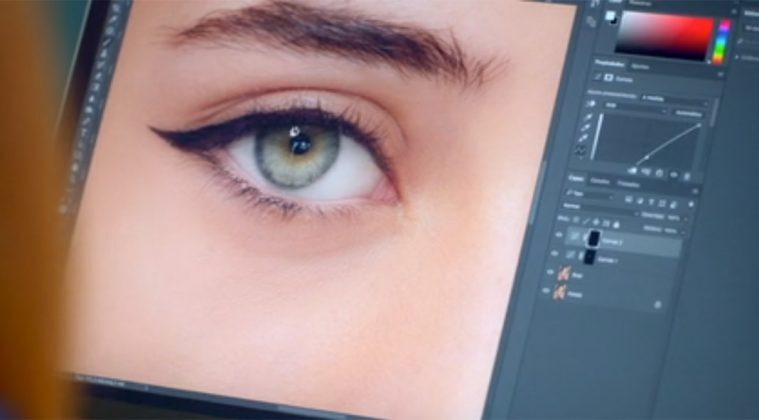
In the ever-evolving field of portrait retouching, continuous learning is essential for enhancing your skills and staying updated with the latest techniques. A wealth of resources is available to help you deepen your knowledge and refine your retouching abilities in Photoshop. This segment will cover various online courses, books, and community platforms that can aid your journey toward mastering portrait retouching.
Online Courses and Tutorials
Numerous online platforms provide structured courses and tutorials specifically focused on Photoshop portrait retouching. These resources often include video tutorials, practical exercises, and step-by-step guidance.
- Adobe Creative Cloud Tutorials: Adobe offers a series of free tutorials directly related to Photoshop retouching techniques, covering everything from basics to advanced methods.
- Udemy: A variety of courses on Udemy focus on portrait retouching, where instructors guide users through specific techniques and effects. Many courses come with lifetime access.
- LinkedIn Learning: This platform provides professional development courses, including extensive tutorials on portrait retouching in Photoshop, ideal for various skill levels.
- Skillshare: Offers a community-driven approach to learning, with multiple classes on portrait retouching taught by industry professionals, allowing for creative exploration.
Books and Materials
Books can serve as valuable resources for understanding the theory and practical applications of portrait retouching in Photoshop. They provide insights into both technical skills and artistic approaches to retouching.
- “Portraits Unplugged” by Andrew Faulkner: This book covers practical retouching techniques and provides a comprehensive guide to creating stunning portraits.
- “The Adobe Photoshop CC Book for Digital Photographers” by Scott Kelby: A highly recommended resource that combines retouching techniques with professional photography tips in an easy-to-follow format.
- “The Art of Retouching” by R. R. K.: This book focuses on the aesthetic aspects of retouching and includes a variety of before-and-after examples to learn from.
Communities and Forums
Engaging with communities and forums can significantly enhance your learning experience by providing opportunities to seek advice, share your work, and receive constructive feedback from other photographers and retouchers.
- Retouching Academy: An online community dedicated to retouching where photographers can share their work and receive critiques, as well as access resources and tutorials.
- Photoshop Gurus: A forum where users discuss various Photoshop techniques, including portrait retouching, featuring threads on different challenges and solutions.
- Fstoppers Community: A platform for photographers to connect, share their experiences, and discuss various aspects of photography, including retouching techniques.
- Facebook Groups: Groups dedicated to photography and retouching, such as “Photoshop Retouching” or “Photography and Retouching,” offer a space for sharing work and gaining insights from peers.
“Continuous learning and community engagement are key to mastering portrait retouching and evolving as an artist.”
Concluding Remarks
In conclusion, mastering the art of retouching portraits in Photoshop is a rewarding endeavor that can significantly enhance your photography portfolio. By applying the techniques and tips discussed, you will be well-equipped to avoid common mistakes and produce stunning images that resonate with viewers. Remember that continuous learning, practice, and refinement of your skills are keys to achieving excellence in portrait retouching.