Delving into How to Edit Your First Photo in Lightroom, this guide aims to illuminate the essentials of this powerful photo editing software. Lightroom provides photographers, both amateur and professional, with a robust set of tools designed to enhance images while maintaining their natural beauty. By understanding its features and capabilities, users can distinguish Lightroom from other editing software, ensuring they choose the right platform for their editing needs.
This overview will walk you through the initial steps in setting up Lightroom, navigating its core editing tools, and mastering techniques to transform your photos into stunning artworks. From importing images to exporting your finished work, this guide covers all the fundamental aspects of Lightroom to ensure a smooth and enjoyable editing experience.
Introduction to Lightroom
Adobe Lightroom is a powerful photo editing and management software designed to streamline the workflow of photographers, from importing images to final output. By providing an extensive array of editing tools and organizational features, Lightroom allows users to enhance their photographs with ease while maintaining a non-destructive editing approach. This capability ensures that original images remain intact throughout the editing process, allowing for creative flexibility and experimentation.Lightroom stands out in the realm of image editing through its intuitive interface and robust features.
Among its key functionalities are advanced color correction, exposure adjustments, and various filters that enhance the aesthetic quality of images. Additionally, Lightroom offers tools for batch processing, making it efficient for photographers who handle large quantities of images. The integration of cloud services allows for synchronization across devices, enabling users to edit anywhere, anytime, which is particularly beneficial for those on the go.
Comparison with Other Editing Software
When comparing Lightroom to other editing software, several distinctions become evident that highlight its unique advantages. Lightroom is primarily aimed at photographers, focusing on the entire workflow from photo importation to final output. Other software, such as Adobe Photoshop, is more geared towards detailed graphic design and raster image manipulation. Key differences include:
- Non-destructive Editing: Unlike traditional editing software, Lightroom allows users to make adjustments without altering the original image file. This means changes can be reverted at any time, preserving the integrity of the original photograph.
- Organizational Tools: Lightroom excels in photo management with features like collections, s, and metadata tagging, which enable efficient sorting and searching of images. This organizational capability is less emphasized in software like Photoshop.
- Batch Processing: Lightroom facilitates the simultaneous editing of multiple images, making it ideal for photographers working with large sets of photos, such as weddings or events.
- Focus on Photography: Lightroom’s editing tools are specifically designed for photo enhancement, whereas other software may offer a wider range of features that are not necessarily tailored to photography.
In summary, Adobe Lightroom serves as a comprehensive solution for photographers seeking to optimize their editing process while enjoying a user-friendly experience. Its specific focus on photographic needs, alongside powerful management capabilities, distinguishes it from more generalized editing software.
Setting Up Lightroom for the First Time

Setting up Lightroom is an essential first step in your photo editing journey. The process involves downloading the software, organizing your workspace, and establishing a catalog to efficiently manage your photos. This foundational setup will equip you with the tools needed to enhance your photographic skills.To begin using Lightroom, one must first download and install the application. Follow these steps to ensure a smooth installation process:
Downloading and Installing Lightroom
The initial step involves obtaining Lightroom, which can usually be found on the official Adobe website. Carefully follow the Artikeld instructions for downloading and installing the software.
- Visit the Adobe website and navigate to the Lightroom section.
- Select the plan that suits your needs, such as a subscription model.
- Download the Lightroom installer, which is compatible with your operating system.
- Open the installer and follow the prompts to complete the installation.
- Launch Lightroom once the installation is completed.
Establishing a catalog is crucial for organizing your photos effectively. It acts as a centralized database where all your images are stored and managed, facilitating easy access and editing.
Creating a Catalog for Organizing Photos
Creating a catalog in Lightroom is important for maintaining a well-structured workflow. A catalog not only helps in organizing photos but also saves changes and settings associated with each image.
“A well-organized catalog is key to a productive editing experience.”
To create a catalog, follow these steps:
- Upon launching Lightroom, you will be prompted to create or open a catalog.
- Choose a location on your computer where you want to store the catalog file.
- Name your catalog to reflect your needs, such as “Travel Photos” or “Family Events.”
- Click ‘Create’ to finalize the setup of your new catalog.
Importing images into your newly created catalog is the next step, allowing you to start editing your photos.
Importing Images into Lightroom
Importing images into Lightroom is a straightforward process, but taking the time to do it thoughtfully will enhance your editing experience. Begin by navigating to the ‘Import’ button, typically located in the bottom left corner of the Library module. This will open the import dialog box, where you can select the source of your images.
- Select the folder containing the images you wish to import.
- Choose the import settings, such as file handling options and metadata preferences.
- Consider applying s during import to streamline future searches.
- Click ‘Import’ to add the selected images to your catalog.
By ensuring that images are properly imported and organized, you will create a more efficient workflow for editing and enhancing your photographs. This foundational setup paves the way for a seamless editing experience in Lightroom.
Basic Photo Editing Tools in Lightroom
Lightroom offers a wide array of photo editing tools that allow photographers to enhance their images effectively. Understanding these tools is crucial for achieving the desired look and feel of your photographs. The Develop module, in particular, is where most of the editing takes place, providing comprehensive controls for adjusting various aspects of your images.The main editing tools available in the Develop module include the Basic panel, Tone Curve, HSL/Color panel, Split Toning, Detail, Transform, and Effects panels.
Each of these tools serves a specific purpose in refining photo quality and aesthetics. The Basic panel, for instance, contains essential sliders that facilitate quick adjustments to the image’s exposure, contrast, highlights, shadows, whites, blacks, clarity, vibrance, and saturation.
Function of Key Sliders
In this section, we will elaborate on some of the most vital sliders found within the Basic panel, elucidating their functions and the impact they have on photo quality.
- Exposure: Adjusts the overall brightness of the image. Increasing exposure brightens the image, while decreasing it darkens the image.
- Contrast: Modifies the difference between the dark and light areas of the image. Increasing contrast makes shadows darker and highlights brighter, adding depth to the photo.
- Clarity: Enhances mid-tone contrast, making details more pronounced. A higher clarity setting can give images a sharper look, while a lower setting softens the image.
- Highlights: Controls the brightness of the brightest parts of the image. Reducing highlights can recover details in overexposed areas.
- Shadows: Adjusts the brightness of the darkest regions. Raising shadows can bring out details in dark areas without affecting the overall exposure significantly.
- Whites: Affects the brightest parts of the image, similar to highlights but with a focus on the white point.
- Blacks: Adjusts the darkest parts of the image, impacting the black point and allowing for more detail in shadow regions.
- Vibrance: Increases saturation selectively, affecting only the less saturated colors and preventing skin tones from becoming overly vivid.
- Saturation: Affects the intensity of all colors in the image uniformly, increasing or decreasing the overall color richness.
The following table compares the effects of different editing tools on photo quality, emphasizing the visual impact each adjustment can have on an image.
| Editing Tool | Effect on Photo Quality |
|---|---|
| Exposure | Brightens or darkens the entire image, affecting the overall feel. |
| Contrast | Adds depth and dimension, enhancing visual interest. |
| Clarity | Sharpens mid-tones, emphasizing details and textures. |
| Highlights | Recovers details in bright areas, preventing loss of information. |
| Shadows | Reveals hidden details in dark areas, enhancing overall balance. |
| Whites | Defines the brightest point, impacting the image’s dynamic range. |
| Blacks | Adds richness to dark areas, improving contrast and depth. |
| Vibrance | Enhances color without oversaturating skin tones, maintaining natural appearance. |
| Saturation | Uniformly boosts color intensity, which can lead to oversaturation if not managed. |
Understanding these basic tools and their effects is vital for achieving the desired enhancements in your images, allowing for personalized artistic expression.
Importing and Organizing Photos
Organizing your photos effectively is crucial for efficient workflow, especially when working with a large library in Lightroom. Proper organization not only saves time but also enhances your ability to locate and edit images when needed. In this section, we will discuss how you can create folders and collections, tag and rate your photos, and follow a step-by-step process for importing your images into Lightroom with specific settings.
Creating Folders and Collections
Creating folders and collections in Lightroom is essential for maintaining a structured library. Folders represent the physical storage location of your images, while collections allow you to group images without altering their physical location. This dual approach enhances your organizational capability.
- To create a folder, navigate to the Library module, right-click on the Folders panel, and select ‘New Folder.’ You can then name the folder according to the project or event, ensuring clarity in your organizational structure.
- To create a collection, go to the Collections panel, click on the ‘+’ icon, and select ‘Create Collection.’ This allows you to organize images thematically, regardless of their original folder location.
- Consider using a consistent naming convention for both folders and collections. For instance, you might use the format ‘YYYY-MM-DD_EventName’ for folders to provide chronological order and easy retrieval.
Tagging and Rating Photos
Tagging and rating your photos can significantly improve your workflow by enabling quick searches and retrieval. Implementing a tagging system helps in categorizing images based on themes, subjects, or even editing status.
- To tag a photo, select the image in the Library module, and go to the ing panel. Here, you can enter relevant s associated with the image. For example, if the photo is of a sunset at the beach, tags like ‘sunset,’ ‘beach,’ and ‘vacation’ could be used.
- Rating photos can be accomplished using star ratings or color labels. To assign a star rating, simply select the image and press the number keys on your keyboard (1-5 stars). Color labels can be assigned by right-clicking the image and selecting the desired color label, which can signify the editing status or priority.
- Utilize a systematic approach for tagging and rating to foster consistency and ease of use. For instance, you might decide to use 1-2 stars for unedited images, 3 stars for in-progress edits, and 4-5 stars for completed edits.
Importing Photos with Specific Settings
Importing photos into Lightroom correctly is vital for maintaining the integrity and quality of your images. Following a systematic approach ensures that you have the right settings applied during the import process.
- Open Lightroom and click on the ‘Import’ button located in the lower-left corner of the Library module.
- In the Import dialog, choose the source of your images, whether it be a camera, SD card, or a folder on your computer.
- In the ‘File Handling’ section, select ‘Copy’ if you want to move files to a new location, or ‘Add’ if you want to reference them in their current location.
- Check the ‘Apply During Import’ section if you wish to apply metadata or develop settings at the time of import. This can save time later when editing.
- Lastly, click the ‘Import’ button in the bottom right corner of the dialog box to complete the process.
Adjusting Exposure and Color
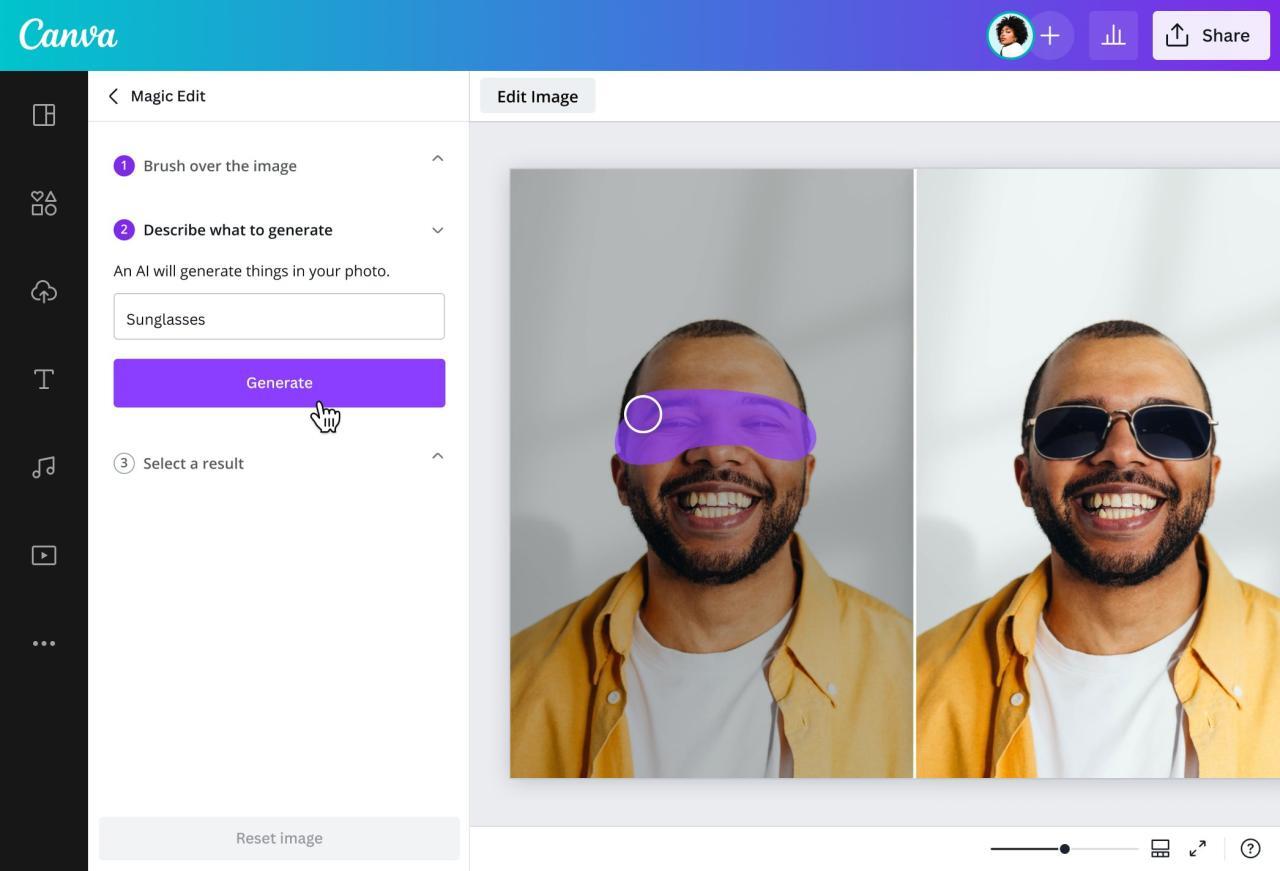
In photo editing, achieving the right exposure and color balance is crucial for transforming your images into visually appealing works of art. Proper adjustments not only enhance the aesthetic quality but also convey the intended mood and emotion of the photograph. This section will guide you through the essential steps for adjusting exposure settings, correcting white balance, and enhancing color vibrancy in Lightroom.
Adjusting Exposure Settings
To ensure optimal brightness in your images, adjusting the exposure is essential. In Lightroom, you can find the exposure slider in the ‘Basic’ panel of the Develop module. This slider allows you to control the overall brightness of your photo. A positive adjustment will brighten the image, while a negative adjustment will darken it. When fine-tuning the exposure, consider the following points:
A well-exposed image retains detail in both highlights and shadows.
It is important to take into account the histogram visible in Lightroom, which provides a graphical representation of the brightness levels in your image. Aim for a balanced histogram that does not clip highlights or shadows, ensuring the full range of tones is represented.
Correcting White Balance and Enhancing Color Vibrancy
White balance correction is vital for ensuring that colors appear as they do in real life. In Lightroom, the white balance settings can be adjusted using the Temperature and Tint sliders. The Temperature slider allows you to make your image cooler or warmer, while the Tint slider adjusts the green and magenta hues. Start with the Auto setting and fine-tune from there to achieve natural-looking colors.Enhancing color vibrancy can significantly impact the overall feel of your photograph.
The Vibrance and Saturation sliders in Lightroom allow you to boost colors without losing details. Vibrance selectively enhances muted colors while leaving already saturated colors intact, making it a preferred option for most images.Here are some tips to achieve different moods through color adjustments:To create a warm and inviting atmosphere:
- Increase the temperature for a golden glow.
- Use soft oranges and yellows in the color grading section.
For a cool and serene look:
- Reduce the temperature to bring out blues and greens.
- Utilize cool colors in your color grading adjustments.
To evoke a dramatic or moody feel:
- Decrease exposure slightly to deepen shadows.
- Increase contrast and saturation to create stronger visuals.
For a vintage or nostalgic effect:
- Reduce clarity to soften details.
- Apply a slight yellow tint for warmth.
- Experiment with faded colors in the color grading panel.
Cropping and Straightening Images
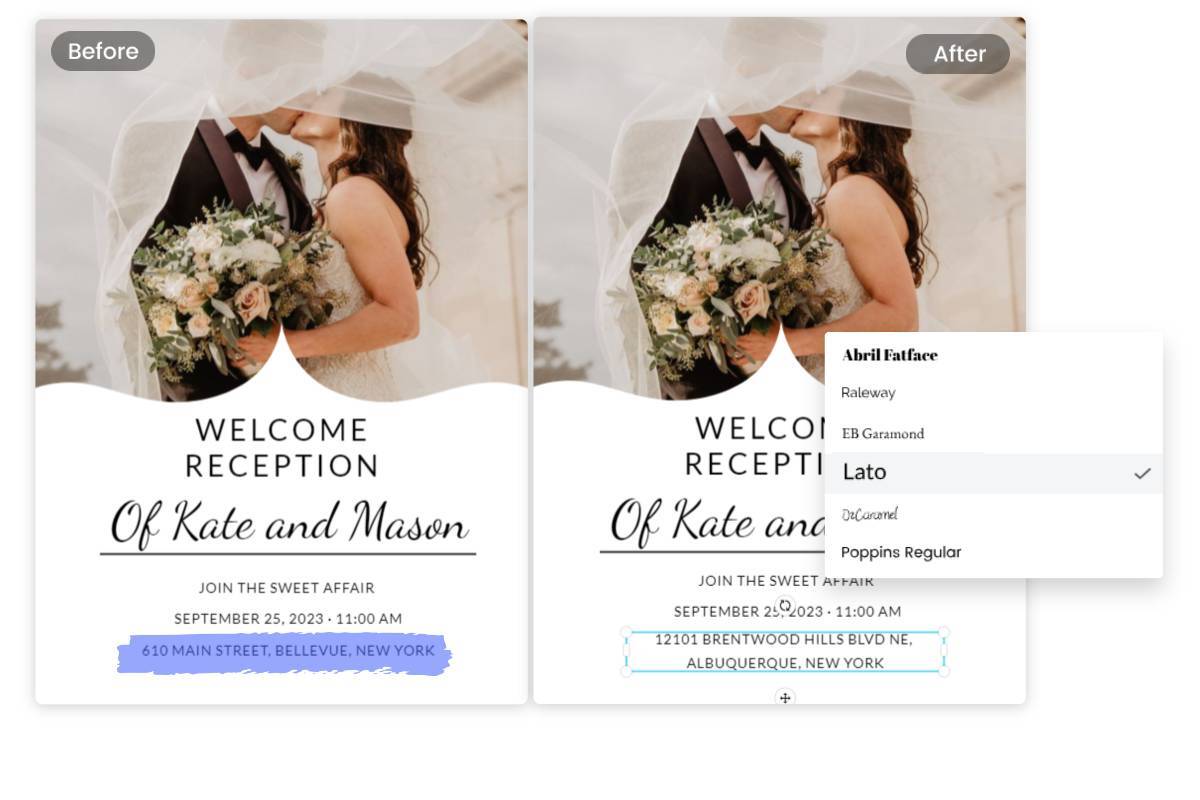
Cropping and straightening images are essential elements of photo editing that significantly enhance the overall composition and visual appeal of your photographs. These techniques allow you to focus on the subject, eliminate distractions, and create balance within the frame, ultimately leading to a more polished final product. In this section, we will explore effective cropping strategies, methods for straightening horizons, and the impact these adjustments have on your images.
Effective Cropping Strategies for Composition
Cropping is an art that can transform an ordinary photo into a compelling work of visual storytelling. Understanding composition rules, such as the Rule of Thirds, can guide your cropping decisions. Below are some key strategies to consider when cropping your images:
- Rule of Thirds: Divide your image into nine equal segments using two horizontal and two vertical lines. Position key elements along these lines or their intersections to create visual interest.
- Eliminate Distracting Elements: Crop out any distractions around your subject to ensure the viewer’s attention is focused where it belongs.
- Adjust Aspect Ratios: Depending on where you plan to display your photo, changing the aspect ratio can enhance its impact. Consider using a square format for social media platforms.
- Frame Within a Frame: Use natural elements in the scene to frame your subject, which can be achieved through cropping to emphasize the framing elements.
An excellent demonstration of effective cropping can be seen in landscape photographs where extraneous elements, such as cluttered backgrounds or distractions, are removed. For instance, an image of a sunset may initially include distracting foreground objects; by cropping them out, the focus shifts solely to the vibrant colors of the sky, thus enhancing its beauty.
Straightening Horizons and Aligning Subjects
Straightening horizons is crucial for maintaining the integrity of your photographs. A tilted horizon can create a sense of imbalance and distract the viewer from the subject. Here are important techniques to ensure your images are aligned correctly:
- Use the Grid Tool: Enable the grid overlay in Lightroom to visualize the horizon line when making adjustments. This helps to quickly identify any tilting.
- Utilize the Crop Tool: The crop tool in Lightroom not only allows you to crop but also provides a straightening slider. You can adjust the angle until the horizon appears level.
- Check Vertical Lines: In addition to the horizon, ensure that vertical elements, such as buildings or trees, are aligned properly to maintain symmetry.
- Zoom In for Precision: Zooming in while straightening can help you achieve a more precise adjustment by allowing for finer control over the alignment.
To illustrate the effects of straightening, consider a photograph depicting a scenic beach where the horizon is slightly tilted. After straightening the image, the horizon appears level, providing a more immersive experience for the viewer. This adjustment can dramatically enhance the professionalism of the shot.
“A well-composed image can convey emotion and create a connection with the viewer.”
Applying Presets and Filters

Presets and filters are essential tools in Lightroom that enhance the editing process, allowing photographers to achieve professional-quality results with efficiency. By applying a preset, users can instantly transform the look of their images while maintaining creative control over the final output.Presets are predefined settings that adjust various parameters, such as exposure, contrast, color balance, and sharpness, with a single click.
They serve as a great starting point for edits, enabling users to experiment with different styles and moods without needing to adjust each setting individually. To apply a preset in Lightroom, select an image in the Develop module, navigate to the Presets panel on the left, and simply click on the desired preset. The changes will automatically reflect in the image preview.Filters, on the other hand, allow for more granular control over specific areas of an image.
They enable photographers to enhance particular aspects such as highlights, shadows, and colors, thus refining the overall composition. The use of filters can result in more dynamic and compelling photographs.
Popular Presets and Their Effects
The choice of presets can significantly influence the mood and style of an image. Below is a table that Artikels some popular presets along with their effects on photographs:
| Preset Name | Effect |
|---|---|
| Light and Airy | Creates a bright and soft look, ideal for portraits and wedding photography. |
| Moody | Adds depth with dark tones and rich colors, suitable for dramatic landscapes. |
| Vintage | Imparts a nostalgic feel with faded colors and a slight grain effect. |
| Black and White | Converts images to monochrome, emphasizing contrast and texture. |
| Vibrant | Enhances color saturation, making images pop, great for travel and nature photography. |
Utilizing presets and filters not only streamlines the editing process but also provides photographers with a versatile toolkit to express their creativity. Each preset can serve as a foundation, allowing for further customization to match personal artistic vision.
Exporting Edited Photos
Exporting edited photos in Lightroom is a crucial step in the workflow, allowing you to save and share your enhanced images in various formats. This process involves selecting the appropriate file format and quality settings to ensure the final product meets your needs, whether for print or online usage.The export feature in Lightroom allows you to convert your edited images into different file formats, such as JPEG, TIFF, or PNG, each serving different purposes.
For instance, JPEG is commonly used for web images due to its smaller file size, while TIFF is preferred for high-quality prints. The quality settings you choose during export can significantly affect the final image resolution and file size.
File Formats and Quality Settings
Choosing the right file format is essential depending on the intended use of the image. Below is a brief overview of common file formats and their applications:
- JPEG: Ideal for web use and sharing, as it balances quality and file size. Recommended quality setting is typically between 80-100 for high-quality images.
- TIFF: Best for high-resolution prints and archival purposes. This format preserves image quality without compression.
- PNG: Suitable for images requiring transparency, often used in graphics and web design.
Understanding resolution is vital when exporting images. Resolution, measured in pixels per inch (PPI), determines the detail an image holds. For print purposes, a resolution of 300 PPI is preferred to ensure high-quality results, while for web use, 72 PPI is generally sufficient. The distinction affects file size; higher resolutions lead to larger files.
Checklist for Exporting
Before finalizing your exports, ensure all necessary settings are checked to achieve the desired output. The following checklist serves as a guide to verify your settings:
- Confirm the correct file format (JPEG, TIFF, etc.) is selected based on output requirements.
- Check the image quality setting — choose between high, medium, or low as appropriate.
- Set the resolution to 300 PPI for print or 72 PPI for web images.
- Adjust the color space: use sRGB for web images and Adobe RGB or ProPhoto RGB for print.
- Specify the output size, ensuring it aligns with the intended use (print dimensions vs. screen size).
- Review any watermark settings if you wish to protect your images.
Following this checklist ensures that your final exported images maintain the quality and specifications required for their intended application. By understanding the intricacies of file formats and quality settings, you can confidently export your edited photos for any use.
Troubleshooting Common Issues
When working with Adobe Lightroom, it is not uncommon for beginners to encounter various issues that can impede the editing process. Understanding these common problems and their solutions can enhance the user experience and streamline the workflow. This section aims to address typical challenges faced by newcomers and provide effective solutions to overcome them.One prevalent issue is the slow performance of Lightroom, which can be attributed to a variety of factors such as hardware limitations or software settings.
Another common problem is difficulty in importing photos, where users may experience failed imports or missing files. Additionally, beginners may struggle with adjustments not appearing as expected, leading to frustration.
Common Problems and Solutions
Identifying solutions to these common challenges can significantly improve the efficiency of your photo editing journey. Below are some of the most frequently encountered problems along with their respective solutions:
- Slow Performance: Ensure that your computer meets the system requirements for Lightroom. Upgrading RAM or using an SSD can greatly enhance performance.
- Import Failures: Check for file compatibility issues or ensure that the file path is correct. Ensure the appropriate permissions are set for the folders you are importing from.
- Adjustments Not Visible: Confirm that you are working in the correct module (Develop module) and that your adjustments are applied to the correct photo. Use the ‘Reset’ option if necessary to start fresh.
- Missing Photos: If photos appear missing after import, check the ‘Previous Import’ section in the Library module. If they are not there, verify the folder location.
- Presets Not Applying: Make sure that the presets you are trying to use are compatible with the current version of Lightroom you are using. Check for updates or reinstall the presets if needed.
To maintain an efficient workflow within Lightroom and minimize the potential for issues, consider the following tips:
- Regularly update Lightroom to benefit from the latest features and bug fixes.
- Organize your files systematically to avoid confusion and ensure ease of access.
- Create a backup of your catalog frequently to prevent data loss.
- Familiarize yourself with keyboard shortcuts to speed up your editing process.
- Optimize your Lightroom preferences for performance based on your system specifications.
Final Summary
In conclusion, learning How to Edit Your First Photo in Lightroom opens the door to a world of creative possibilities. By familiarizing yourself with its features and techniques, you can elevate your photography and develop a personal style that resonates with your artistic vision. With practice and patience, you will unlock your potential and create captivating images that tell your unique story.