How to Tether Your Camera to a Computer is a gateway to transforming your photography experience. Tethering not only enhances creative control but also allows real-time collaboration and image management, making it an essential technique for professional photographers and enthusiasts alike. As technology evolves, so do the capabilities of modern cameras, and understanding tethering can significantly elevate your photographic workflow.
This guide will illuminate the intricacies of tethering, from the necessary equipment and camera preparations to detailed instructions for connecting your camera to a computer. We will also explore the software options available and share advanced techniques to optimize your tethering experience, ensuring you capture stunning images with ease.
Understanding Tethering
Tethering in photography refers to the technique of connecting your camera directly to a computer or a mobile device. This allows for the transfer of images in real-time, enabling photographers to view, edit, and manage their images instantly during a shoot. Tethering is particularly useful in studio settings as it enhances workflow efficiency and provides immediate feedback on composition and exposure.The primary advantages of tethering your camera to a computer include enhanced control over camera settings, the ability to view images on a larger screen, and streamlined workflows, particularly during professional shoots.
By tethering, photographers can make adjustments in real-time, ensuring that the captured images meet their creative vision without delays. Furthermore, this method allows for easy image storage and organization, as photos can be saved directly to the computer’s hard drive, minimizing the risk of losing data.
Types of Cameras That Support Tethering
Not all cameras are equipped to support tethering, but several types are commonly compatible. Understanding the types of cameras that facilitate this functionality is crucial for photographers seeking to utilize tethering effectively. The most prevalent categories of cameras that support tethering include:
- DSLR Cameras: Many modern DSLRs from brands such as Canon and Nikon come with tethering capabilities. These cameras often have dedicated software that allows seamless connectivity to computers.
- Mirrorless Cameras: Similar to DSLRs, mirrorless cameras from manufacturers like Sony, Fujifilm, and Panasonic typically support tethering, providing high-resolution images while maintaining compact designs.
- Medium Format Cameras: These professional-grade cameras, often used in commercial and fashion photography, allow for advanced tethering options, enabling high-quality image capture and immediate review.
- Smartphone Cameras: With the right applications and adapters, certain smartphone cameras can also support tethering, making them versatile tools for photography on the go.
The ability to tether is often determined by the camera’s firmware and the software used for tethering. Thus, it’s essential for photographers to check compatibility with specific tethering applications, such as Adobe Lightroom or Capture One, to ensure a smooth and efficient process.
Required Equipment
Tethering your camera to a computer requires specific equipment to ensure a seamless connection and optimal functionality. Understanding the necessary components is essential for photographers looking to enhance their workflow and streamline their shooting process.To successfully tether your camera, various cables, adapters, and software options must be considered. This section Artikels these vital components and their compatibility with different operating systems, facilitating a comprehensive setup for tethering.
Necessary Cables and Adapters
Selecting the right cables and adapters is crucial for establishing a reliable connection between your camera and computer. The following items are typically required for tethering:
- USB Cable: The most common cable used for tethering. Ensure it is compatible with your camera model, typically USB Type-A or USB Type-C.
- Power Adapter: Some cameras may require external power sources to maintain functionality during tethering sessions, especially for extended shoots.
- Thunderbolt or HDMI Cable: For cameras equipped with these ports, they may be suitable for specific high-speed connections or video feeds.
- Adapters: Depending on the compatibility of your camera and computer ports, you may need adapters (e.g., USB-C to USB-A) to create the necessary connection.
Software Options for Tethering
The effectiveness of tethering is significantly influenced by the software utilized. Various applications are available that cater to different cameras and user needs. Here are some notable software options:
- Adobe Lightroom: Offers tethering support for several camera brands, enabling instant review and adjustments of images.
- Capture One: A professional-grade software widely praised for its advanced tethering capabilities and versatile editing tools.
- Camera Manufacturers’ Software: Many camera brands, such as Canon and Nikon, provide proprietary software that supports tethering, ensuring compatibility and ease of use.
- Darkroom Software: An option for those who prefer a free and open-source solution, yet may have limited compatibility with certain cameras.
Compatible Operating Systems for Tethering Setups
Different tethering setups may exhibit varying compatibility with operating systems. It is essential to ensure that the selected software and camera are compatible with your operating environment. The following operating systems commonly support tethering:
- Windows: Most tethering software is compatible with recent versions of Windows, including Windows 10 and 11.
- macOS: Many professional photography applications, such as Capture One and Adobe Lightroom, offer robust support for macOS.
- Linux: While options may be limited, some open-source tethering solutions are available, although compatibility can vary by camera model.
Preparing Your Camera

To successfully tether your camera to a computer, proper preparation of your camera settings is essential. This process ensures that the camera communicates effectively with the tethering software and the computer, providing a seamless workflow during shooting sessions. Below are the steps necessary for configuring your camera in preparation for tethering.
Camera Settings Configuration
Before connecting your camera to a computer, specific settings must be configured to enable tethering functionality. Ensure the following adjustments are made:
- Set to Manual Mode: Switch your camera to manual mode to have complete control over exposure settings, preventing automatic adjustments that may disrupt tethered shooting.
- Disable Auto Power Off: Turn off the auto power-off feature to maintain a constant connection between your camera and computer during extended shoots.
- Check Image Quality Settings: Set the image quality to RAW or JPEG based on your project requirements, keeping in mind that RAW files typically provide greater editing flexibility.
- Adjust Live View Settings: If your camera supports live view, enable it to see real-time previews of your images on your computer screen, which can be beneficial for composition and focus adjustments.
Firmware Updates Installation
Keeping your camera’s firmware updated is crucial for ensuring compatibility with tethering software and improving functionality. Follow these steps to install necessary firmware updates:
- Visit the manufacturer’s website to check for the latest firmware version available for your camera model.
- Download the firmware update file to your computer and follow the instructions provided by the manufacturer for installation.
- Transfer the firmware file to your camera’s memory card, ensuring that the card is formatted according to the manufacturer’s guidelines.
- Insert the memory card into your camera and navigate to the firmware update option in the camera’s menu.
- Follow the on-screen prompts to complete the installation of the firmware update.
Ensuring Camera Readiness
Before initiating the tethering process, several additional steps can guarantee that your camera is ready for a successful connection:
- Charge Your Battery: Ensure that your camera battery is fully charged or consider using an AC adapter to avoid interruptions during shooting.
- Use a High-Quality USB Cable: Select a reliable and compatible USB cable that meets the specifications of your camera to establish a stable connection.
- Verify Software Compatibility: Confirm that the tethering software installed on your computer is compatible with your camera model and has been updated to the latest version.
- Test Connection: Prior to your main shoot, conduct a test connection between your camera and computer to ensure that all settings are functioning correctly.
Connecting Your Camera to the Computer
Establishing a connection between your camera and computer is a crucial step in tethering, enabling you to transfer images directly to your computer for immediate review and editing. This section Artikels the process of physically connecting your camera, recognizing it on your computer, and troubleshooting common connection issues.
Physical Connection Process
To connect your camera to the computer, utilize the appropriate cable that fits your camera’s port. Most cameras use either USB or HDMI connections. Follow these steps:
1. Turn Off the Camera
Always begin by ensuring that your camera is powered off to prevent any potential damage during the connection process.
2. Connect the Cable
Plug one end of the cable into the camera and the other end into an available USB or HDMI port on your computer. Ensure that the connections are secure.
3. Power On the Camera
Once the cable is connected, turn on your camera. The camera should automatically establish a connection with the computer.
4. Select the Correct Mode
Depending on your camera model, you may need to select a specific mode for tethering, such as “PC Connect,” “USB Tethering,” or similar settings found in the camera’s menu.
Recognizing the Camera on the Computer
Upon establishing a physical connection, the next step is to ensure that the computer recognizes the camera. Typically, the operating system will prompt notification upon detection. If the camera is not recognized, follow these guidelines:
Check for Notifications
After powering on the camera, look for any pop-up notifications on your computer indicating that a new device has been connected.
Access File Explorer or Finder
Open File Explorer (Windows) or Finder (Mac) to check if the camera appears as a removable storage device. If visible, you can proceed with importing images.
Install Necessary Drivers
For some cameras, additional drivers may be required to facilitate communication between the camera and the computer. Refer to the manufacturer’s website for driver downloads if needed.
“Ensure that your camera is set to the correct tethering mode to enhance the likelihood of successful recognition.”
Troubleshooting Connection Issues
If you encounter issues in connecting your camera to the computer, the following troubleshooting steps can help:
Inspect the Cable
Ensure that the cable is not damaged and is compatible with your camera model. Replace the cable if any visible wear or tear is present.
Check USB Ports
Try connecting the camera to a different USB port on the computer, as some ports may be malfunctioning or have insufficient power.
Restart Devices
Sometimes, simply restarting the camera and the computer can resolve minor connectivity issues.
Update Software
Ensure that your camera’s firmware and computer operating system are up to date. Outdated software can lead to compatibility issues.
Disable Conflicting Software
Close any conflicting software that may interfere with the tethering process, such as photo management applications or other camera software.Addressing these points can significantly enhance your experience when tethering your camera to your computer, ensuring a seamless workflow in your photography endeavors.
Using Tethering Software
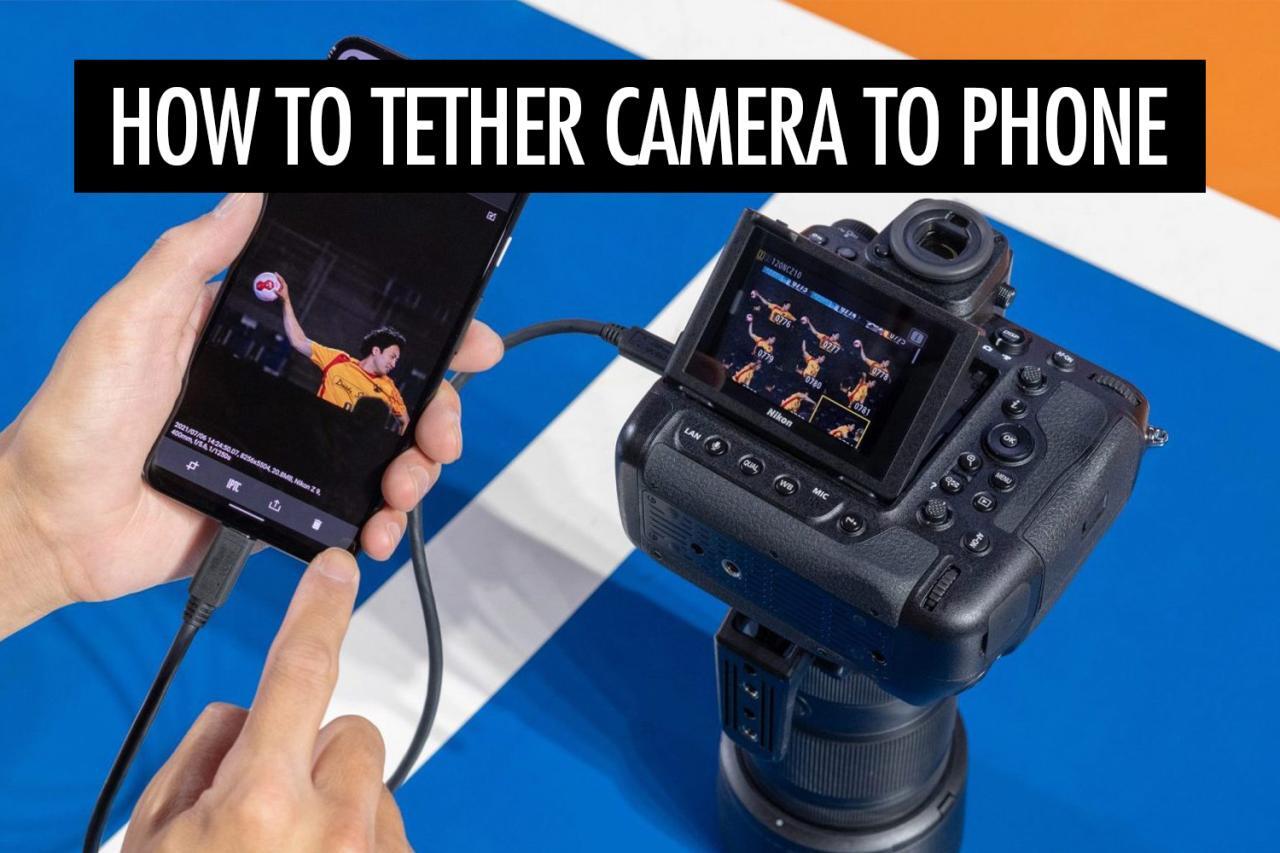
Tethering software is a crucial component in the photo capture process, allowing photographers to control their cameras directly from a computer. This enhances workflow efficiency and provides immediate access to images for review and editing. Understanding how to set up and navigate this software is essential for maximizing the benefits of tethering.
Setting Up Tethering Software
To begin using tethering software, follow these steps to ensure a smooth setup process. Proper installation and configuration will facilitate effective usage.
- Download and Install the Software: Visit the official website of the tethering software suitable for your camera model, such as Capture One, Adobe Lightroom, or Canon EOS Utility. Follow the provided instructions to download and install the software.
- Connect Your Camera: Ensure that your camera is connected to your computer via USB or wireless connection as previously discussed. This connection is essential for the software to detect your device.
- Launch the Software: Open the tethering software. Wait a moment for it to recognize the connected camera. The software interface should display the camera settings and options once detected.
- Configure Camera Settings: In the software, navigate to the camera settings section to adjust exposure, ISO, and other parameters as needed. This will allow for precise control over shooting conditions.
- Set File Preferences: Specify the location on your computer where the captured images will be stored. This organization helps in easily accessing your files post-shoot.
Effective Navigation of the Software Interface
Navigating the tethering software interface is straightforward once familiarized. Understanding the layout and available tools is key to utilizing the software effectively.The interface typically includes several key sections:
- Live View Display: This area shows a real-time feed from the camera, allowing photographers to frame shots accurately.
- Camera Controls: Easily accessible buttons for adjusting settings such as shutter speed, aperture, and ISO are found here.
- Image Capture Button: A prominent button to capture images directly from the software, streamlining the shooting process.
- Thumbnail Preview: Displays captured images in a grid format, enabling quick reviews and selections.
- Settings Menu: Contains options for adjusting software preferences, including file formats and storage locations.
Features and Tools in Tethering Software
Tethering software offers a variety of features designed to enhance the photography experience. These tools are essential for professional workflows.Key features commonly found in tethering software include:
- Customizable Presets: Save and apply specific camera settings for different shoots, ensuring consistency across images.
- Remote Shooting: Ability to control the camera from the computer, allowing photographers to make adjustments without needing to touch the camera body.
- Image Editing Tools: Basic editing functions such as cropping, rotating, and adjusting exposure within the software.
- Real-Time Feedback: Instant review of images allows for on-the-spot adjustments and corrections to camera settings.
- Integration with Other Software: Many tethering applications can be integrated with photo editing software for a seamless transition from capturing to editing.
“Utilizing tethering software can significantly improve the efficiency and quality of your photography sessions.”
Capturing and Reviewing Images
/Interpolation-56e09b4f5f9b5854a9f8551b.jpg "How to Connect a Camera to a Computer")
Tethering a camera to a computer not only enhances the shooting experience but also allows for immediate feedback and organization of images. This process streamlines workflow and can elevate the quality of your photography sessions, whether for professional purposes or personal projects. The procedure for capturing photos directly through tethering software is quite straightforward. Typically, the software interface will display a live view feed from your camera, allowing you to compose your shots while adjusting settings as needed.
To take a photograph, you can usually click a dedicated capture button within the software. Many programs also allow for remote control of camera functions, such as shutter speed, aperture, and ISO, which can be adjusted without physically interacting with the camera. This feature is particularly advantageous in studio settings where the photographer may need to remain in a specific position.
Reviewing Images Immediately After Capture
Reviewing images right after they are captured is a significant benefit of tethering. Most tethering software provides an option to display the captured images on the computer screen instantly, allowing you to evaluate focus, exposure, and composition without any delay. This immediate review process can include the following steps:
- Enable the auto-download feature in your tethering software, which will automatically save each captured image to a designated folder on your computer.
- Utilize the preview window within the software to view images as soon as they are taken, facilitating quick assessments.
- Employ zoom tools to closely examine specific areas of the image for sharpness and detail, ensuring that the photo meets your standards before moving forward with the shoot.
The ability to review images promptly not only helps in identifying any issues in real-time but also allows for immediate adjustments, ensuring that subsequent captures align with your creative vision.
Organizing and Managing Images During a Tethering Session
Organizing and managing images during a tethering session is crucial for maintaining an efficient workflow. Effective management practices can help in sorting through large volumes of images seamlessly.To keep your session organized, consider implementing the following strategies:
- Create a specific folder structure on your computer before starting your session, categorized by date, project, or client, to automatically place images in the correct location.
- Label or tag images within the software as you go, marking favorites or potential edits to streamline post-processing later.
- Utilize rating systems offered by the software to designate the quality of shots, helping you quickly identify the best images after the shoot.
Employing these organizational strategies not only enhances efficiency during the shooting process but also facilitates a smoother workflow in subsequent editing and selection phases. By managing your images effectively, you can ensure that the creative process flows uninterrupted, allowing for a more enjoyable and productive photography experience.
Advanced Tethering Techniques
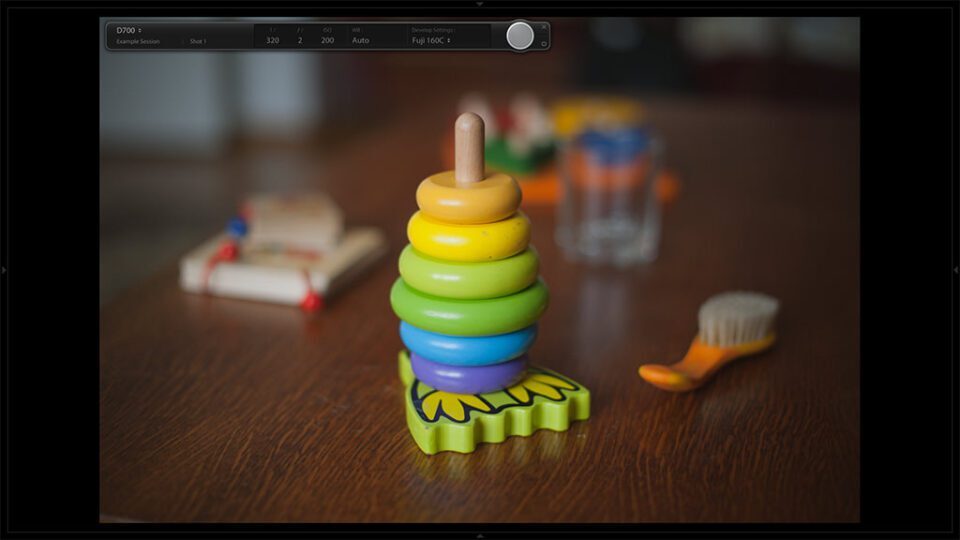
Tethering your camera to a computer can vastly improve your photography workflow, especially when implementing advanced techniques. Understanding how to optimize performance, enhance client collaboration, and integrate remote shooting features can elevate the quality and efficiency of your shoots significantly.
Optimizing Tethering Performance
To ensure a smooth tethering experience, various techniques can be employed to enhance performance. These strategies focus on minimizing lag and maximizing the connectivity between your camera and computer.
- Use High-Quality Cables: Utilizing high-speed USB or Ethernet cables reduces latency and ensures stable connections. Always opt for cables that are known for their durability and speed capabilities.
- Adjust Camera Settings: Selecting the appropriate image quality and file size can significantly affect transfer speeds. For tethered shooting, consider using compressed RAW formats or lower resolution images as a temporary solution.
- Optimize Software Settings: Tethering software often has specific settings that can be adjusted for performance. Disabling unnecessary preview features or background processing can increase responsiveness.
- Maintain System Performance: Close any non-essential applications on your computer to free up resources. Regularly update your tethering software and drivers to ensure you are utilizing the latest improvements.
Collaborating with Clients During a Tethered Shoot
Effective communication with clients during a tethered shoot is crucial for capturing the desired results. Advanced tethering setups allow clients to view images in real-time, making collaboration more intuitive and productive.
- Share the Screen: Use a large monitor or a projector during the shoot to display images as they are captured. This allows clients to provide immediate feedback on compositions, poses, and lighting.
- Incorporate Annotations: Many tethering software options allow for notes or annotations on images. Utilize this feature to highlight areas of focus or adjustments needed based on client feedback.
- Schedule Regular Check-ins: Frequently discuss the shoot’s progress and any adjustments needed. This promotes a collaborative atmosphere and ensures that the client is satisfied with the direction of the shoot.
- Provide Image Comparisons: Use the tethering software to compare images side by side. This can help clients understand subtle differences in images and make informed decisions about their selections.
Integrating Remote Shooting Features
Incorporating remote shooting capabilities into your tethering setup can offer additional flexibility and creative control. This feature is particularly useful for dynamic shoots or when capturing subjects in challenging positions.
- Utilize Smartphone Apps: Many modern cameras offer mobile applications that allow photographers to trigger the shutter remotely. This can be particularly valuable in group shoots or when working with animals.
- Implement Remote Triggers: Use remote shutter releases or intervalometers to capture images without physically touching the camera. This helps avoid camera shake and allows for capturing candid moments.
- Explore Wireless Tethering: Consider utilizing wireless tethering options available on some cameras and software. This gives photographers the freedom to move around without being limited by cable lengths.
- Set Up Automated Workflows: Some tethering software allows for automated settings, enabling the camera to capture images at predefined intervals or when specific conditions are met. This can save time during complex shoots.
“Optimizing your tethering setup not only enhances performance but also creates an environment that fosters creativity and collaboration.”
Final Conclusion
In summary, mastering the art of tethering your camera to a computer opens up a world of possibilities for photographers. By understanding the various components and techniques involved, you can greatly enhance your workflow, enabling a more efficient and enjoyable photo capture process. Embrace the power of tethering to create stunning visuals while enjoying seamless interaction with your equipment and clients.