Delving into How to Calibrate Your Monitor for Accurate Colors invites readers to explore the intricate world of monitor calibration, an essential process that ensures the colors displayed on your screen reflect true-to-life hues. In various fields such as photography, graphic design, and video production, the accuracy of color representation can significantly influence the final outcome of creative work, making calibration not merely a technical task but a vital step in achieving excellence.
Understanding the tools and methods available for calibration, along with the significance of maintaining accurate colors, can transform your viewing experience. This comprehensive guide will provide you with the knowledge needed to enhance your monitor’s performance, ensuring that your visuals meet the high standards of your profession or personal projects.
Understanding Monitor Calibration
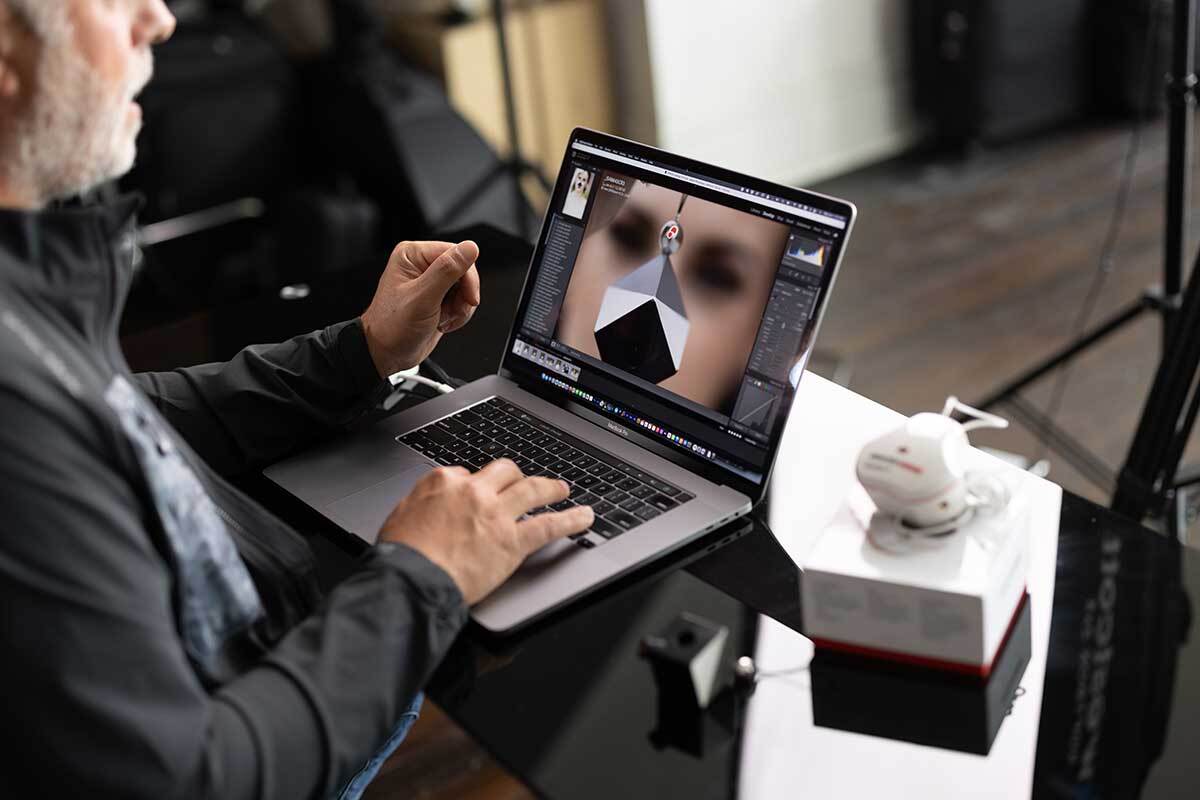
Monitor calibration refers to the process of adjusting a computer monitor’s settings to ensure that the displayed colors are as accurate as possible. This is crucial for professionals working in fields such as photography, graphic design, and video editing, where precise color representation is fundamental. An uncalibrated monitor can lead to significant discrepancies in color perception, potentially resulting in flawed work and unsatisfactory outcomes.The effects of using an uncalibrated monitor extend beyond just poor color accuracy; they can impact the entire workflow in creative industries.
For instance, photographers may edit images only to find they appear drastically different when printed, as the colors weren’t accurately represented on the screen. Similarly, graphic designers might create materials that look visually appealing on their monitors but fail to resonate with audiences when viewed on other devices, leading to miscommunication of brand identity or message.
Key Terms and Concepts Related to Monitor Calibration
Understanding the terminology associated with monitor calibration can enhance your ability to effectively calibrate and utilize your monitor. Some key terms include:
- Color Temperature: This refers to the warmth or coolness of the light emitted from the monitor, measured in Kelvin (K). A color temperature of 6500K is often used for standard daylight conditions.
- Gamma: This describes the relationship between the brightness of the input signal and the brightness of the output image. Adjusting gamma can improve the visibility of details in dark or light areas of an image.
- White Point: The white point defines what white looks like on a screen. Calibrating the white point ensures that colors are displayed accurately, thereby affecting all other colors displayed on the monitor.
- Color Gamut: This term refers to the range of colors that a monitor can display. Different devices have varying color gamuts, impacting how colors are perceived.
- Calibration Tools: Various tools, such as software and hardware devices (colorimeters), are used to perform monitor calibration. These tools measure the color output of the monitor and guide users in making necessary adjustments.
An awareness of these concepts not only aids in achieving accurate color representation but also empowers users to make informed decisions regarding their calibration strategies. Understanding monitor calibration is essential in ensuring that the colors you see on your screen are true to life and align with your creative vision.
Tools and Software for Calibration
Monitor calibration is essential for achieving accurate color representation, which is particularly important for professionals in photography, graphic design, and videography. Utilizing the right tools and software can significantly enhance the calibration process, ensuring that colors are rendered faithfully on screen. This section will explore popular hardware tools, software options across various operating systems, and provide guidance on installing and setting up these calibration solutions.
Hardware Tools for Calibration
To ensure precise color reproduction, various hardware tools can be employed for monitor calibration. The two most common types of devices include colorimeters and spectrophotometers. Colorimeters are specialized devices designed to measure the color attributes of light emitted by a monitor. They are user-friendly, often more affordable, and provide sufficient accuracy for most users. A widely recognized example is the X-Rite i1 Display Pro, which is favored by many professionals for its speed and precision.
Spectrophotometers offer a higher level of accuracy compared to colorimeters. These devices can measure a broader range of colors and are capable of analyzing reflected light from physical surfaces, which makes them suitable for advanced applications such as print. An example of a spectrophotometer is the X-Rite i1Pro 2, known for its versatility and high performance in both monitor and print calibration.
Calibration Software Options
There is a variety of calibration software available for different operating systems, each tailored to work seamlessly with specific hardware tools. Here are some noteworthy options:
DisplayCAL
This open-source software is compatible with Windows, macOS, and Linux. It supports a range of colorimeters and spectrophotometers and offers advanced calibration settings, making it a popular choice among professionals.
CalMAN
Primarily used in the video industry, CalMAN is a comprehensive software available for Windows. It is particularly valued for its capability in calibrating displays for home theater and professional use.
i1Profiler
Offered by X-Rite, i1Profiler is an advanced software designed to work with their hardware tools. It is available for both Windows and macOS, providing a user-friendly interface and various calibration options.
SpyderX
Developed by Datacolor, this software is designed to work with their line of calibration devices. It features an intuitive design and is particularly aimed at photographers and designers looking to achieve precise color control.
Installation and Setup of Calibration Tools and Software
The process of installing and setting up calibration tools and software involves several steps to ensure optimal performance. For hardware tools like colorimeters and spectrophotometers, begin by following the manufacturer’s instructions for connecting the device to your computer. Ensure that the device is properly calibrated according to the manufacturer’s guidelines before starting the software installation.The software installation process typically includes:
- Downloading the appropriate version of the software for your operating system from the official website.
- Following the installation wizard prompts to complete the setup, which may involve accepting license agreements and selecting installation directories.
- Once installed, connect your calibration device if prompted by the software.
After installation, the calibration process can begin. Set the desired calibration settings within the software, which may include brightness, contrast, and white point adjustments. Follow any on-screen instructions to complete the calibration, ensuring that the monitor is in a controlled lighting environment for accurate results.
“Accurate monitor calibration is vital for ensuring that the colors you see on your screen match the colors that will ultimately be printed or displayed elsewhere.”
Step-by-Step Calibration Process
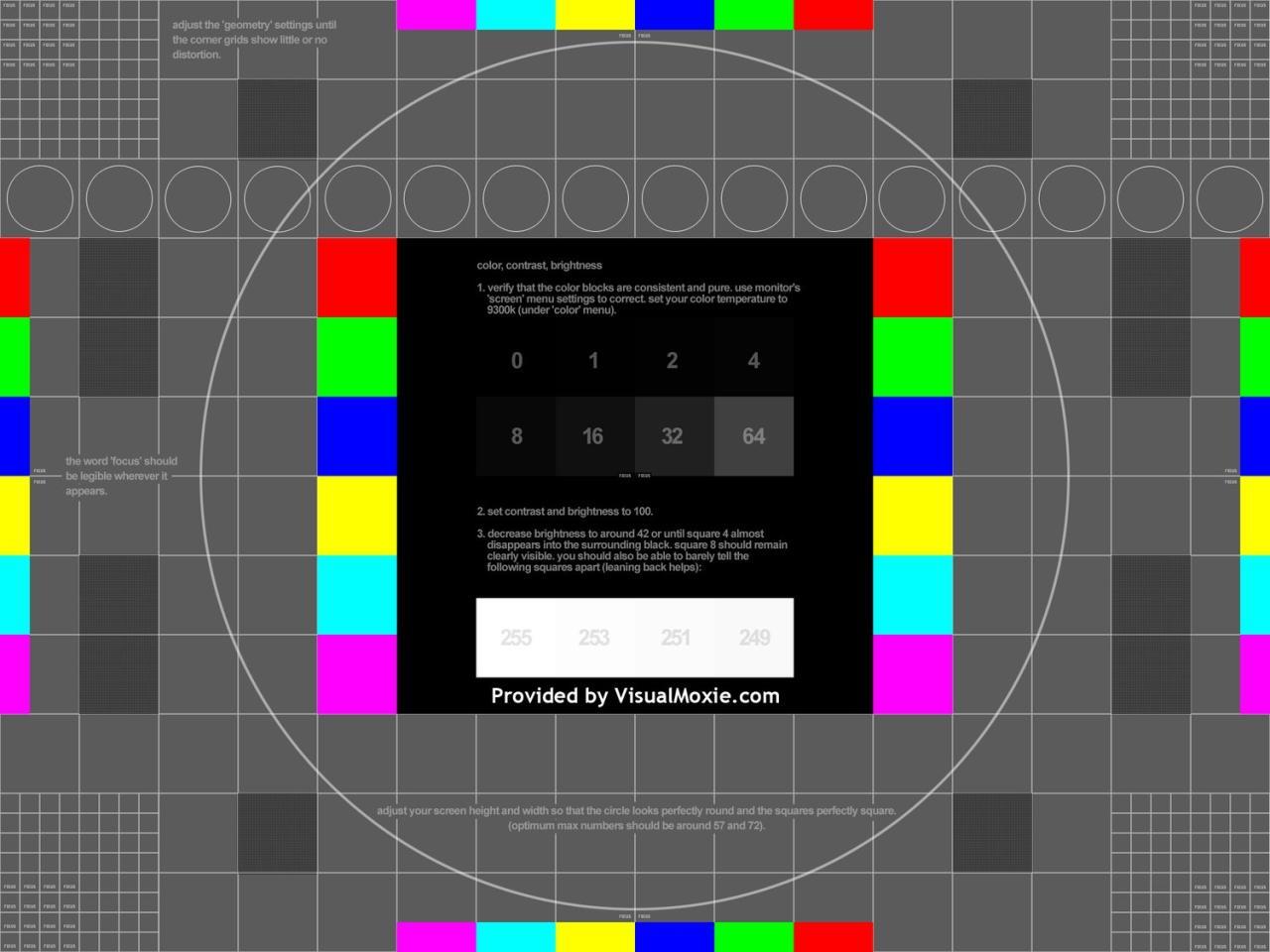
Properly calibrating your monitor ensures that the colors displayed are accurate and true to life, which is essential for tasks in graphic design, photography, and video editing. This process can be accomplished using hardware tools or software alone. Below, we Artikel detailed steps for both methods along with tips for setting optimal lighting conditions prior to calibration.
Calibration Using Hardware Tools
Utilizing hardware calibration tools, such as colorimeters or spectrophotometers, provides a more precise calibration compared to software methods. The following steps Artikel the process of calibrating your monitor with these tools:
1. Obtain a Calibration Device
Acquire a colorimeter or spectrophotometer compatible with your monitor.
2. Install Necessary Software
Most calibration devices come with their own software. Install this on your computer and ensure the device is connected.
3. Prepare Your Monitor
Set your monitor to its default settings and warm it up for at least 30 minutes before calibration.
4. Set Up the Calibration Device
Place the sensor of the device on the center of your monitor screen, ensuring that it is flat against the surface.
5. Run the Calibration Software
Launch the calibration software and follow the on-screen instructions. The device will take several readings across the screen.
6. Adjust Settings
Based on the readings, the software will make adjustments to color balance, brightness, and contrast.
7. Save the New Profile
After calibration, save the new color profile to your operating system’s color management settings.
Calibration Using Software Without Hardware Tools
Calibrating your monitor without hardware tools is a practical option, although it may not yield the same level of accuracy. The following steps provide a guide on how to achieve this:
1. Access Display Settings
Open your computer’s display settings and navigate to color management.
2. Choose Calibration Option
Look for the option to calibrate the display, often found under “Advanced” or “Color” settings.
3. Adjust Brightness and Contrast
Use on-screen images provided during the calibration process to set brightness and contrast levels to your preference.
4. Set Gamma Levels
Adjust the gamma settings according to the guidelines provided, which help in balancing light and dark areas on the screen.
5. Color Calibration
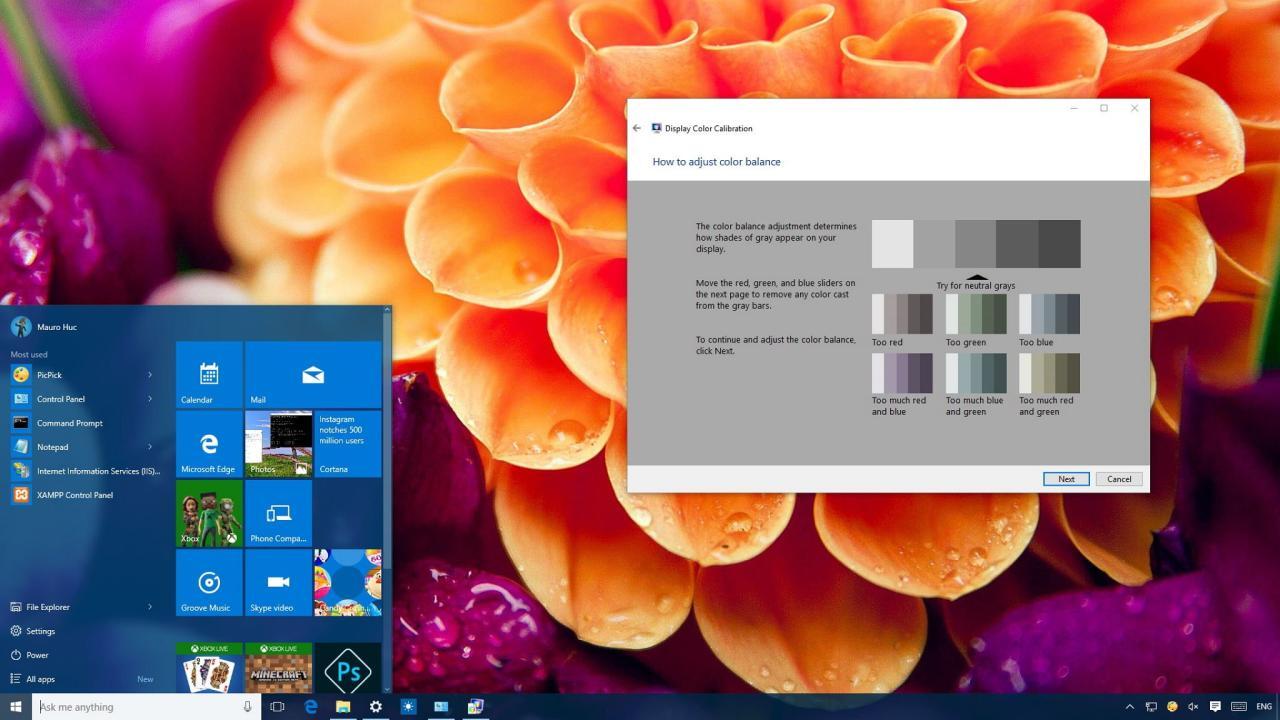
Follow the prompts to adjust the red, green, and blue levels to achieve accurate color representation.
6. Review Changes
After adjustments, observe the on-screen images to ensure they appear natural and consistent. Make further adjustments if necessary.
7. Save the Profile
Once satisfied, save the calibration profile to ensure that it is applied each time you use the monitor.
Optimal Lighting Conditions for Calibration
Before beginning the calibration process, it is crucial to set up an environment that optimizes the accuracy of the calibration. Here are some tips to achieve ideal lighting conditions:
Minimize Ambient Light
Dim the room lights or use blackout curtains to reduce glare and reflections on the monitor.
Use Neutral Lighting
Ensure that the light in the room is neutral, avoiding colored bulbs or sources that could skew color perception.
Avoid Direct Sunlight
Position the monitor away from windows or bright light sources to prevent varying light conditions from affecting calibration results.
Maintain Consistent Lighting
Aim for consistent lighting throughout the day; consider calibrating at the same time each day to ensure uniformity in results.
By adhering to these steps and tips, one can effectively calibrate their monitor, ensuring accurate color representation essential for various professional tasks.
Common Calibration Settings
Calibrating a monitor effectively requires attention to various key settings that directly impact color accuracy and visual performance. Adjusting these settings not only improves the viewing experience but also ensures that colors are represented correctly across different devices and formats. In this section, we will delve into crucial calibration settings, including brightness, contrast, gamma, and color temperature, while also providing tailored recommendations for different types of monitors.
Brightness, Contrast, and Gamma Adjustments
Brightness, contrast, and gamma are essential parameters that influence how images and colors are displayed on your monitor. Proper adjustments to these settings can enhance detail visibility and color fidelity.The brightness setting controls the overall luminance of the display. It should be adjusted to a level that prevents eye strain while ensuring that dark details remain visible without overwhelming highlights.
Contrast refers to the difference in brightness between the lightest and darkest parts of the image. A higher contrast setting can enhance the vibrancy of colors but may also lead to loss of detail in extreme bright or dark areas if set too high. Gamma affects the midtones of the display’s color range. By adjusting gamma, you can ensure that the mid-tones appear natural and that the grayscale transitions are smooth.
For effective calibration, consider the following recommended settings based on the monitor type:
- For IPS monitors, a brightness level of 120-140 cd/m² is often optimal, with a contrast ratio set around 80-90%.
- On TN panels, a slightly higher brightness of 150-200 cd/m² is advisable due to their inherent lower contrast ratios, often around 70-80%.
- OLED displays should be calibrated with a brightness around 100-130 cd/m², keeping contrast levels at about 80% or lower to prevent burn-in issues.
Color Temperature Settings
Color temperature is a critical aspect of monitor calibration, determining the overall hue of the display. Measured in Kelvin (K), it influences how warm or cool the colors appear. A typical color temperature for accurate color representation is 6500K, which closely resembles natural daylight. Setting the correct color temperature is vital for ensuring that whites appear as true white and that colors maintain their integrity, regardless of the content being viewed.
To achieve the optimal color temperature, monitor settings should usually be adjusted using a color calibration tool or software. The following steps are recommended for setting color temperature accurately:
- Start by selecting the preset for ‘6500K’ if available on the monitor settings.
- If manual adjustment is required, use a calibration tool to measure the current color output and make incremental adjustments until the desired temperature is achieved.
- Regularly check the calibration settings as ambient lighting conditions can affect perceived color temperature.
Recommended Calibration Settings for Different Monitor Types
Different types of monitors may require specific calibration settings to optimize performance and color accuracy. Below are some general recommendations based on common panel technologies.For IPS monitors, which are known for their vibrant color reproduction:
- Brightness: 120-140 cd/m²
- Contrast: 80-90%
- Gamma: 2.2
- Color Temperature: 6500K
For TN panels, which can sometimes struggle with color accuracy:
- Brightness: 150-200 cd/m²
- Contrast: 70-80%
- Gamma: 2.2
- Color Temperature: 6500K
For OLED displays, which excel in deep blacks and color vibrancy:
- Brightness: 100-130 cd/m²
- Contrast: 80% or lower
- Gamma: 2.2
- Color Temperature: 6500K
By understanding and adjusting these common calibration settings, users can significantly enhance their monitor’s performance, ensuring that colors are rendered accurately and consistently across various applications.
Maintaining Calibration Over Time
Regular monitor calibration is crucial for ensuring continued color accuracy, especially for professionals in fields such as graphic design, photography, and video editing. Over time, factors such as monitor aging and environmental changes can impact color display fidelity. Therefore, having a strategy for maintaining calibration over time is essential for achieving consistent results.
Calibration Schedule and Guidelines
Establishing a calibration schedule is vital for consistent color accuracy. Here are some recommended guidelines for performing regular calibration checks:
- Frequency: Calibrate your monitor at least once a month to maintain optimal color accuracy.
- Before Important Projects: Perform a calibration before starting any significant projects, especially if they involve color-critical work.
- After Environmental Changes: Recalibrate if there have been significant changes in your workspace, such as new lighting or alterations in wall color.
- Monitor Age: Assess your monitor’s calibration needs as it ages; older monitors may require more frequent adjustments.
Factors Affecting Monitor Calibration
Several external factors can influence monitor calibration, necessitating routine checks:
- Ambient Light Changes: Fluctuations in room lighting can alter the perceived colors on your screen. Natural sunlight and artificial lighting both have varying color temperatures that may affect color accuracy.
- Monitor Aging: All monitors age over time, leading to changes in color reproduction accuracy. This can be due to wear on components such as the backlight or panel itself.
- Temperature Variations: Monitors can behave differently in varying temperature settings, affecting color stability. It is advisable to maintain a consistent temperature in your workspace.
Best Practices for Storing Calibration Profiles
Storing calibration profiles effectively can optimize your workflow, especially when working in different environments or on various projects. Consider the following best practices:
- Profile Naming: Use clear and descriptive names for each calibration profile, including the environment or project type to ensure easy retrieval.
- Regular Backups: Keep backups of calibration profiles in multiple locations (e.g., cloud storage, external drives) to prevent data loss.
- Environment-Specific Profiles: Create and store profiles tailored to different lighting conditions or room setups to switch easily based on your working environment.
- Documentation: Keep a log detailing the date of calibration, lighting conditions, and any adjustments made. This will help track changes over time and facilitate better decision-making for future calibrations.
Troubleshooting Calibration Issues
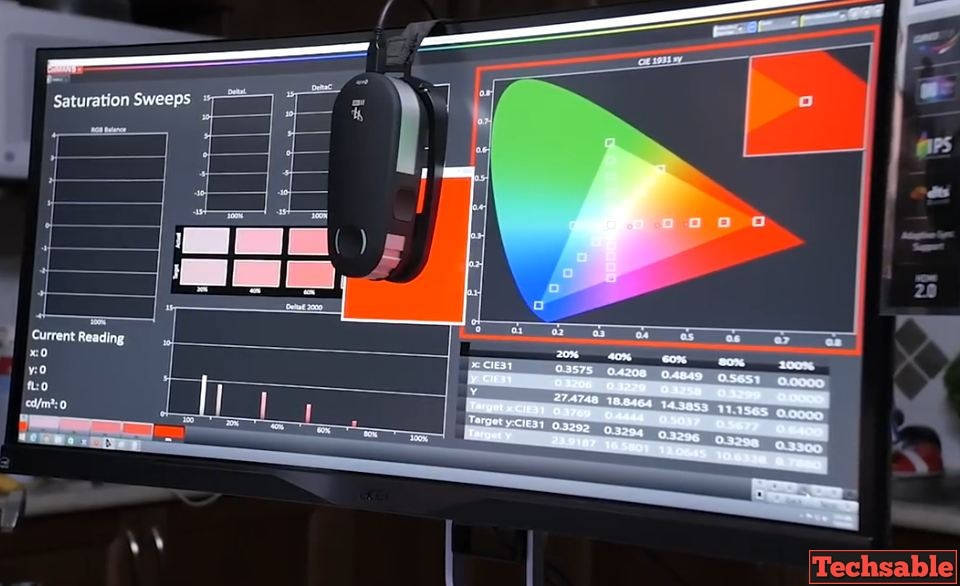
Calibrating a monitor is essential for achieving accurate color representation, but occasionally, problems may arise that can compromise this calibration. Understanding how to troubleshoot these issues is vital for maintaining the integrity of your display. This section will highlight common calibration problems, how to recognize them, and effective solutions to restore accuracy.
Common Calibration Problems and Solutions
Even with careful calibration, users may encounter several issues that can lead to subpar color accuracy. Identifying these problems early can prevent further complications. Below are some typical calibration issues along with potential solutions:
- Inconsistent Colors: If colors appear different across various applications or in comparison to printed materials, this may indicate an incorrect calibration setting. To resolve this, ensure that the same color profile is used consistently across all applications.
- Color Cast: A persistent color tint (e.g., a blue or yellow cast) can suggest a miscalibration. It can be rectified by adjusting the RGB settings in your monitor menu or using calibration software to reset the color balance.
- Brightness and Contrast Issues: If the screen appears too bright or too dim, it might be due to incorrect brightness and contrast settings. Regularly refer to calibration tools to confirm that these settings align with the suggested levels for your specific monitor.
- Gamma Problems: If the gamma settings are not correctly set, it can lead to poor shadow detail or washed-out highlights. Use calibration software to measure the gamma and adjust it to the recommended standard (usually around 2.2 for most displays).
Signs of Incorrect Calibration
Recognizing the signs of an incorrectly calibrated monitor is crucial for timely intervention. Users should be vigilant for the following indicators:
- Color Inconsistency: If images or graphics display differently in terms of color when viewed on different devices or after being printed, this is a key sign of miscalibration.
- Poor Detail in Shadows or Highlights: Loss of detail in darker or lighter areas can indicate that gamma settings are off, leading to an inaccurate representation of contrast.
- Discrepancy in Skin Tones: When skin tones appear unnatural or overly saturated, this is a clear indication that calibration needs to be revisited.
- Delayed Color Response: If there is a perceptible lag in color changes during graphic adjustments, it might signal a calibration problem.
Troubleshooting Steps for Color Inconsistencies
If inconsistencies in color representation persist after calibration, follow these troubleshooting steps to achieve optimal results:
1. Verify Color Profiles
Ensure that the correct color profile is selected for your monitor. This step is crucial, especially if you work with color-critical applications such as graphic design or photography.
2. Re-run Calibration Software
Utilize your calibration software to conduct a new round of calibration. Ensure all settings are optimized according to the software recommendations.
3. Check for External Light Sources
Ambient lighting can significantly affect perceived color accuracy. Make sure to calibrate your monitor in a controlled lighting environment to minimize interference.
4. Regular Maintenance
Dust, fingerprints, or screen smudges can distort color perception. Regularly clean your monitor using appropriate materials to maintain clarity.
5. Hardware Troubleshooting
If issues persist, consider checking hardware connections. Loose cables or improper connections can lead to display problems and require checking for updates or driver installations.
By following these solutions and steps, users can address calibration issues effectively, ensuring their monitors represent colors accurately and consistently.
Advanced Calibration Techniques
In the realm of monitor calibration, advanced techniques are essential for achieving precision and consistency, particularly in professional settings such as film production and graphic design. These methods not only enhance the accuracy of colors displayed but also ensure that visual content is represented authentically across various devices. This section explores advanced calibration techniques, emphasizing the use of 3D Look-Up Tables (LUTs), strategies for multiple monitor setups, and industry-specific calibration practices.
Use of 3D LUTs for Professional Calibration
D Look-Up Tables (LUTs) are pivotal in achieving accurate color representation, especially in high-end production environments. By mapping input colors to desired output colors, 3D LUTs allow for intricate adjustments that standard calibration tools may not address. The process typically involves:
Creation of a Custom LUT
Using software to analyze and map the color output of a monitor against a known standard, enabling precise adjustments.
Integration in Workflow
Once created, the 3D LUT can be applied across various software applications to ensure uniform color output during editing or production.
Verification of Accuracy
Regularly testing the monitor against the LUT ensures continued accuracy, adapting to any changes in lighting conditions or monitor aging over time.
“The implementation of 3D LUTs allows professionals to maintain color integrity across different viewing platforms.”
Calibration for Multiple Monitor Setups
For professionals who utilize multiple monitor setups, calibration presents unique challenges. Synchronizing multiple displays ensures that they exhibit consistent color and brightness, crucial for collaborative work environments. To achieve this:
Calibrate Each Monitor Individually
Begin by calibrating each monitor according to its specifications and performance capabilities.
Use a Colorimeter Across All Monitors
Employing a colorimeter can help in matching the color output of each display, ensuring they produce similar results.
Adjust Settings for Uniformity
Fine-tune brightness, contrast, and color settings on each monitor to align their outputs more closely.
Regular Maintenance
Monitor performance may drift over time; therefore, routine recalibration is necessary for sustained accuracy.
Industry-Specific Calibration Practices
Different industries have unique requirements for monitor calibration. For instance, film production and graphic design emphasize color fidelity and consistency to ensure that their work translates accurately across different media. Here are some insights for calibration tailored to these fields:
Film Production
Color Grading Monitors
Use monitors capable of displaying a wider color gamut and superior contrast ratios to facilitate color grading.
Calibration for Viewing Environment
Ensure monitors are calibrated in the lighting conditions that reflect the final viewing context—this might include dim or specific lighting setups.
Graphic Design
Utilize Adobe RGB Color Space
Calibrate monitors to Adobe RGB for a broader color range, which is essential for print accuracy.
Account for Printing Profiles
Consider the color profiles of printers and other output devices to achieve the best match between on-screen colors and printed results.
“Industry-specific calibration ensures that visual artwork is represented accurately, ultimately enhancing the viewer’s experience.”
Ultimate Conclusion
In summary, mastering the art of calibrating your monitor is crucial in achieving accurate color representation. By following the systematic steps Artikeld in this guide, utilizing the right tools, and maintaining calibration over time, you can ensure that your work is consistently presented as intended. Whether you are a professional or an enthusiast, dedicating time to monitor calibration will undoubtedly elevate your visual experience and the quality of your projects.